The Font Selector Option in the Sellio Product Options app allows customers to choose different font styles for personalized products. This is especially useful for products that involve custom text, engraving, printing, or design customization.
It enhances the user experience by letting customers preview how their text will look in the selected font before placing an order.
A Font Selector Option displays a list of font styles that customers can choose from. It also includes a live preview feature, allowing users to see how their entered text appears in the selected font.
Example:
Choose Your Font
Arial
Roboto
Playfair Display
? Customer enters text → selects a font → sees live preview
Basic Configuration
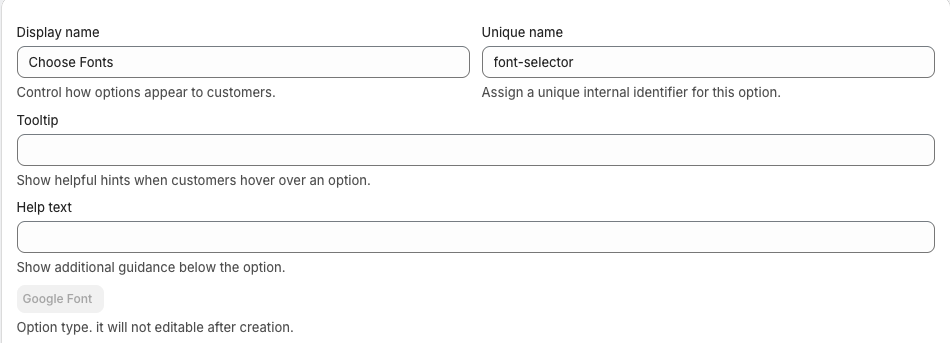
• Display Name
This is the label visible on the product page.
Example: Choose Your Font Style
• Unique Name
Internal identifier used for backend operations.
Example: font_selector
• Tooltip
Displays additional information when hovered.
Example: Select a font for your custom text
• Help Text
Shown below the option to guide customers.
Example: Preview your text in different fonts before selecting
Advanced Settings
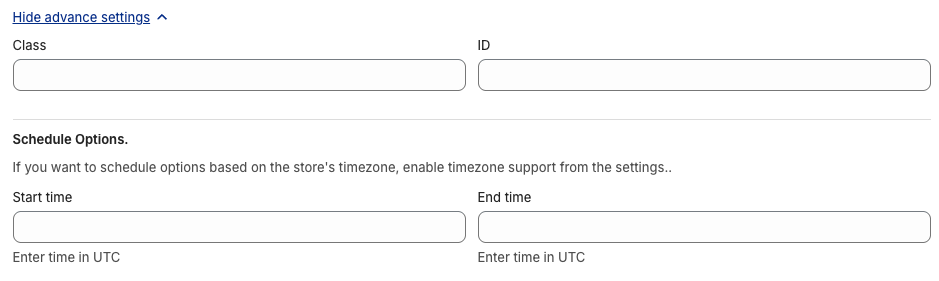
• Class & ID
Used for custom styling or tracking via CSS/JS.
• Schedule Option
Control when the option is visible:
Start Time
End Time
Use Case:
Enable font customization only during specific campaigns or product availability.
• One-Time Charge
When enabled, the font selection charge is applied only once per product, even if the quantity is more than one.

Example:
Custom font charge = $5
Product quantity = 3
? Total charge = $5 (not $15)
• Preview Option
This feature allows customers to preview their text in real-time based on the selected font.

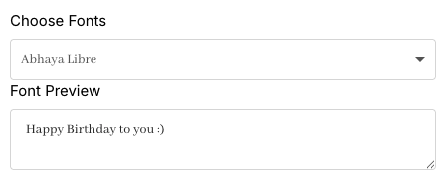
? How it works:
Customer enters custom text
Selects a font
Text updates instantly in the selected font style
? Use Case:
Name engraving
Custom T-shirts
Printed gifts
Option Values Setup
Each font is added as an individual option value.
• Option Value Name
Examples:
Arial
Roboto
Playfair Display
• Font Source Options
Merchants can add fonts in two ways:
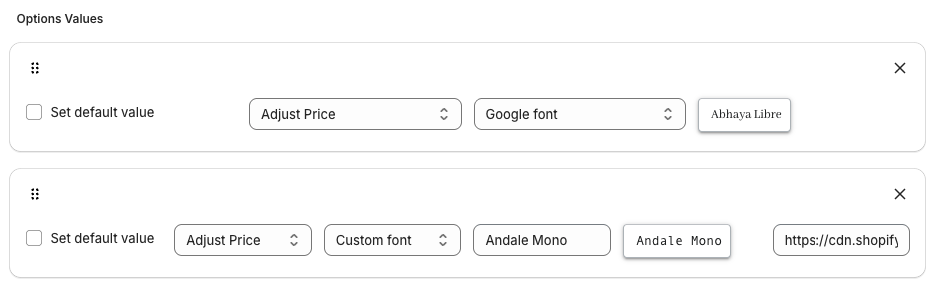
1. Google Font Library
You can select fonts directly from the Google Fonts library.
? Examples:
Roboto
Open Sans
Lato
? Use Case:
Easy integration with widely supported fonts.
2. Custom Font Upload
You can upload your own custom fonts.
? Steps:
Upload
.ttffont file in Shopify FilesCopy the file URL
Paste it in the font field
? Use Case:
Brand-specific fonts
Unique typography styles
• Pricing Options
Each font can have its own pricing:
No Charge
Free font selectionCreate Charge (Fixed Price)
Example: Premium Font = $5Link Existing Product/Variant
Link existing Shopify variant/product with the Option valuePercentage-Based Price
Example: 10% of product priceMultiplication-Based Price
Price scales multiply by Product Price. Example: 2x of Product price.
• Pricing Behavior
? If a font has pricing, it is applied based on selected pricing logic
(usually a single selection, unlike multi-select options)
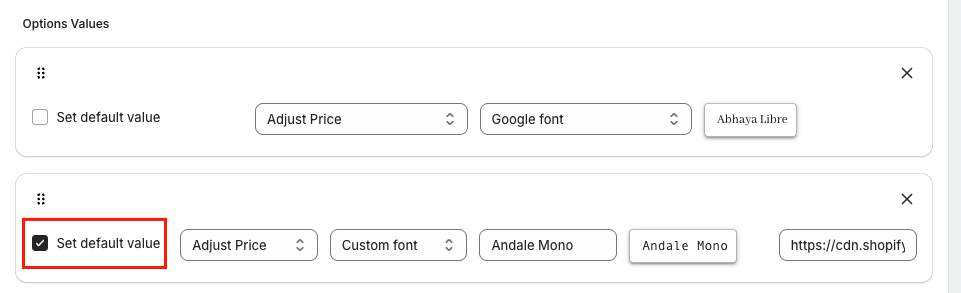
• Set Default Value
Pre-select a font when the page loads.
Use Cases
Custom name printing (T-shirts, hoodies)
Engraved products (jewelry, gifts)
Personalized mugs or frames
Branding or logo customization
Was this article helpful?
That’s Great!
Thank you for your feedback
Sorry! We couldn't be helpful
Thank you for your feedback
Feedback sent
We appreciate your effort and will try to fix the article