The Phone option in the Sellio Product Options App allows customers to enter their phone number directly on the product page. This is especially useful for orders that require direct communication, verification, or service coordination.
It ensures merchants can collect accurate contact details along with the order.
How to Create a Phone Option
Navigate to:
App Dashboard → Create Option → Select “Phone”
Once selected, configure the option using the available settings.
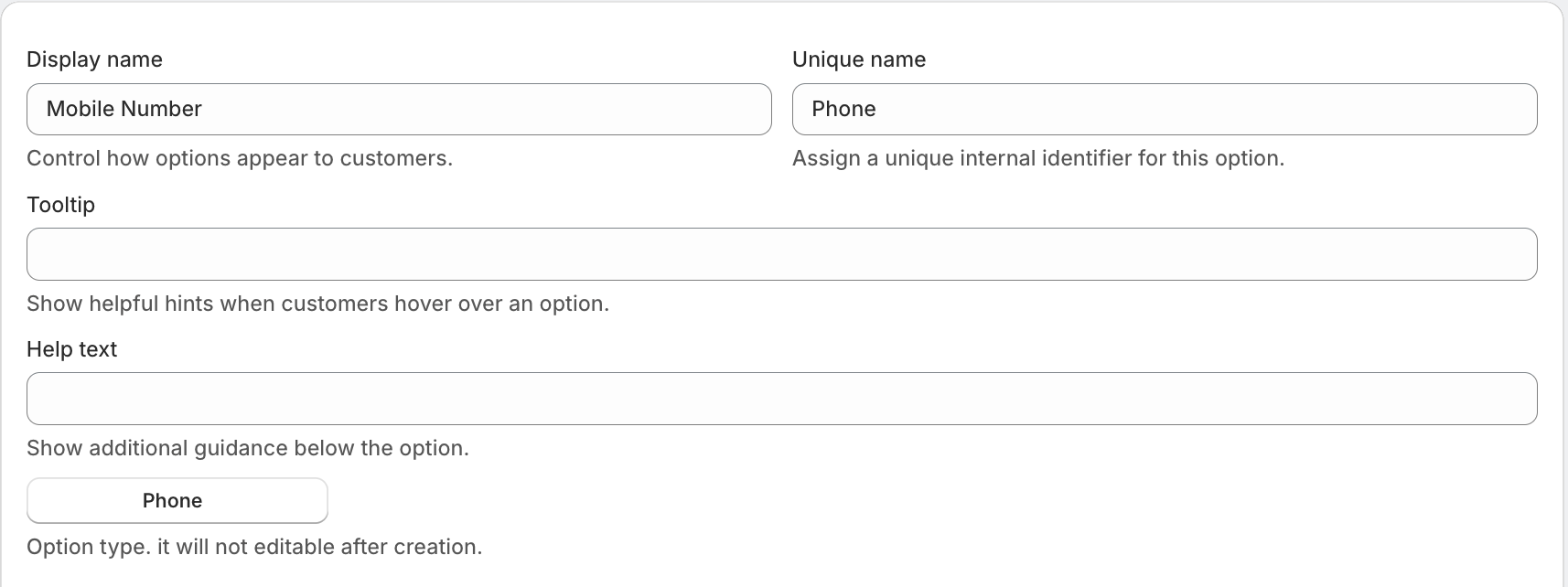
Field Settings Explained
Display Name
This is the label shown to customers on the product page.
Examples:
Enter Phone Number
Contact Number
Mobile Number
Unique Name
A unique internal identifier for this option.
Used for backend tracking
Not visible to customers
Must be unique
Tooltip
Displays a hover message to guide customers.
Example:
Please enter a valid phone number for order confirmation.
Help Text
Appears below the input field to provide additional guidance.
Example:
We will use this number to contact you regarding your order.
Option Type
Set as Phone and cannot be changed after creation.
Advanced Settings
This option includes limited but important advanced controls:
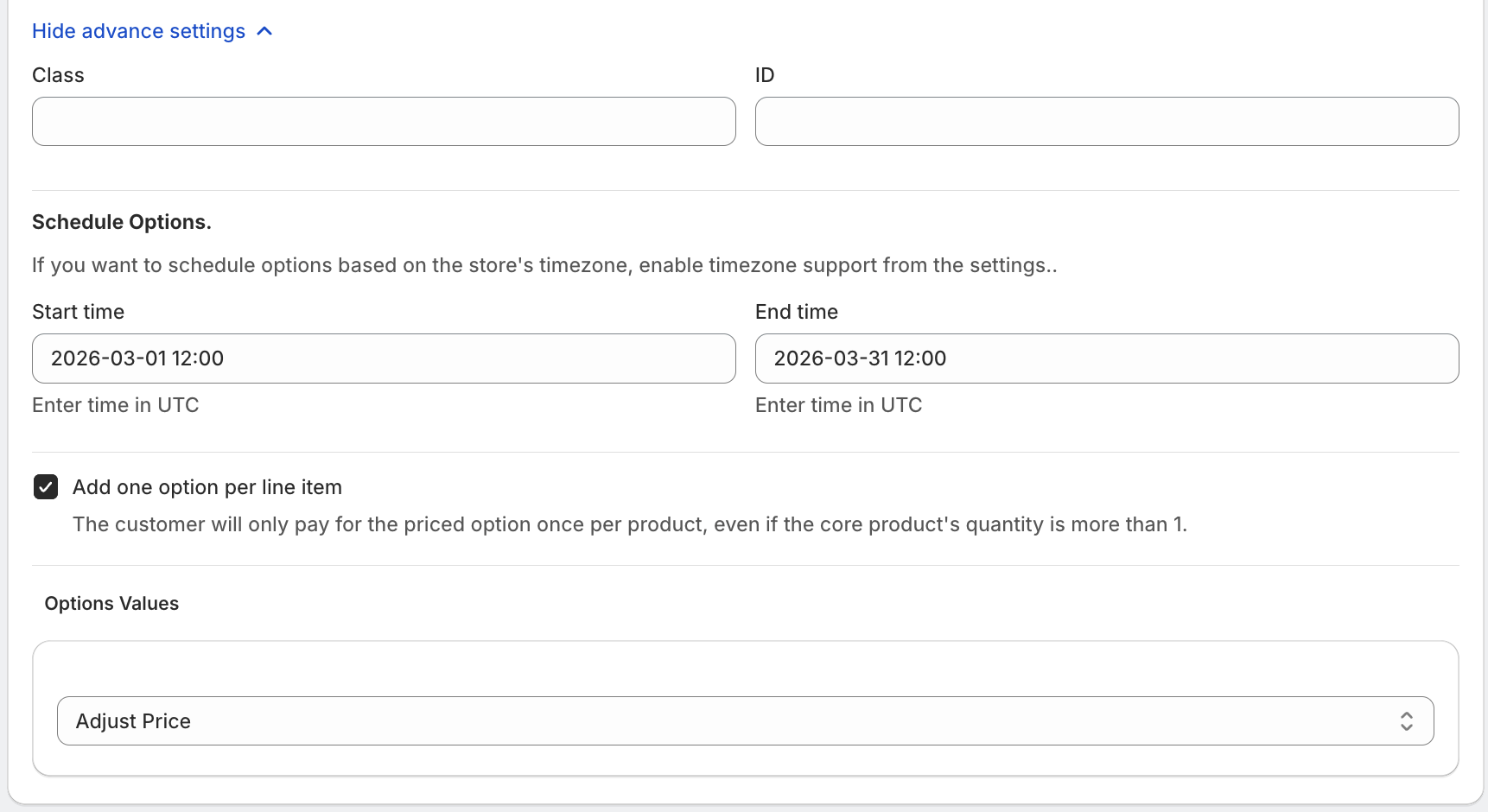
Custom Class & ID
You can assign:
Class
ID
Useful for:
Custom CSS styling
JavaScript targeting
Theme-level customization
Schedule Options
You can control the visibility of the Phone field using:
Start Time
End Time
(All times are based on UTC unless store timezone is enabled.)
Use Cases
Show phone field only during specific campaigns
Enable for limited-time services
Collect contact details for special promotions
One-Time Charge Option
“Add one option per line item”
When enabled:
The charge is applied only once per product
Even if the product quantity is more than 1
Example
Product quantity: 3
Phone-related service charge: ₹20
Total charge applied: ₹20 (not ₹60)
Pricing Configuration
The Phone option supports flexible pricing models:
1. Fixed Price
Adds a fixed amount to the product.
Example: +₹20 for contact handling
2. Extra Charge
Adds an additional predefined charge when this field is used.
3. Percentage-Based Price
Charge calculated as a percentage of the product price.
Example:
5% of ₹1000 → ₹50
4. Multiplication-Based Price
Dynamic pricing based on product price.
Example:
Price × 0.5
₹1000 product → ₹500 charge
Example Setup
Display Name: Enter Phone Number
Help Text: We will contact you for order updates
Price: ₹20 fixed
One-Time Charge: Enabled
Was this article helpful?
That’s Great!
Thank you for your feedback
Sorry! We couldn't be helpful
Thank you for your feedback
Feedback sent
We appreciate your effort and will try to fix the article