The Create Option feature allows merchants to add customizable product options that customers can interact with on the product page. This helps merchants offer personalized products and collect additional information from customers during checkout.
Step 1: Click the “New” Button
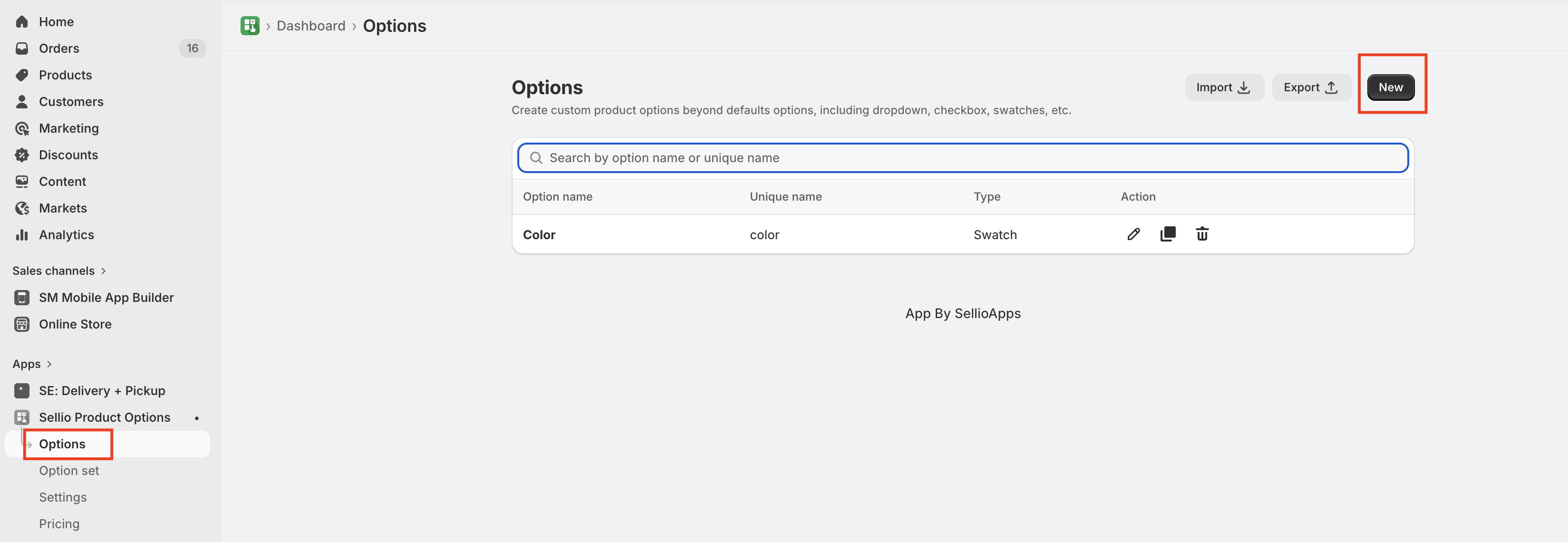
When merchants click the Create Option button, a quick option creation flow appears. This guided process helps merchants easily configure a new option.
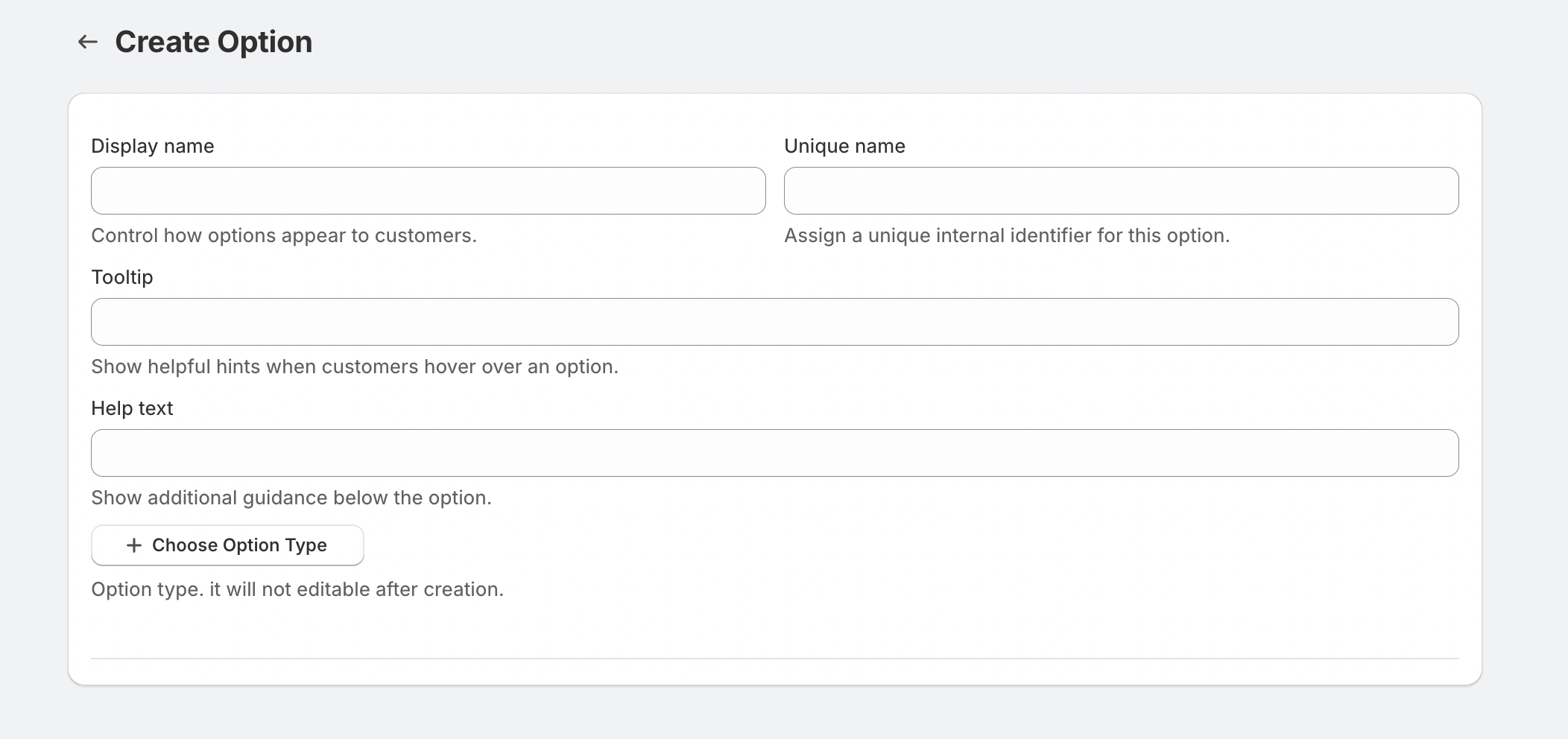
Step 2: Add Option Details
The first step is to define the basic details of the option.
Option Display Name – This is the label that will be shown to customers on the product page.
Unique Name – This is an internal identifier for the option and must be unique across all options in the app.
Step 3: Add Tooltip or Help Text (Optional)
Merchants can add tooltips or help text to provide additional information about the option. This helps customers better understand what the option is for before selecting or filling it out.
Step 4: Choose the Option Type
The app provides a wide variety of option types so merchants can collect different kinds of information from customers.
1. Input Value Types
These options allow customers to enter custom information.
Available types include:
Single Line Text
Paragraph
Phone
Date
Time
Email
Hidden Field
Number Field
2. Single Value Selection Types
These options allow customers to select one value from multiple choices.
Available types include:
Swatches
Radio Buttons
Dropdown
Color / Image Dropdown
3. Multiple Value Selection Types
These allow customers to select more than one option.
Available types include:
Checkboxes
Multiple Selection Dropdown
Swatches
Multi-Quantity Selector
4. Additional Option Types
The app also provides several advanced option types for enhanced product customization.
These include:
Short Text Group
Information Popup
Font Selector
Formula-Based Option
Color Picker
File Upload Option
Merchants can choose the option type that best suits their product requirements and then configure the option values accordingly.
Step 5: Assign Options Using Option Sets
Once the options are created, merchants can organize them into Option Sets and assign them to specific products.
Merchants can also configure conditional logic within option sets to show or hide certain options based on customer selections or predefined rules.
This flexibility allows merchants to build dynamic and highly customizable product experiences.
For assistance, please contact us at help@sellioapps.com or submit a Support Ticket.
Was this article helpful?
That’s Great!
Thank you for your feedback
Sorry! We couldn't be helpful
Thank you for your feedback
Feedback sent
We appreciate your effort and will try to fix the article