The Date option in the Sellio Product Options App allows customers to select a specific date directly from a calendar picker on the product page. This is ideal for products or services that require date-based inputs, such as delivery scheduling, bookings, or appointments.
How to Create a Date Option
Navigate to:
App Dashboard → Create Option → Select “Date”
Then configure the option using the available settings.
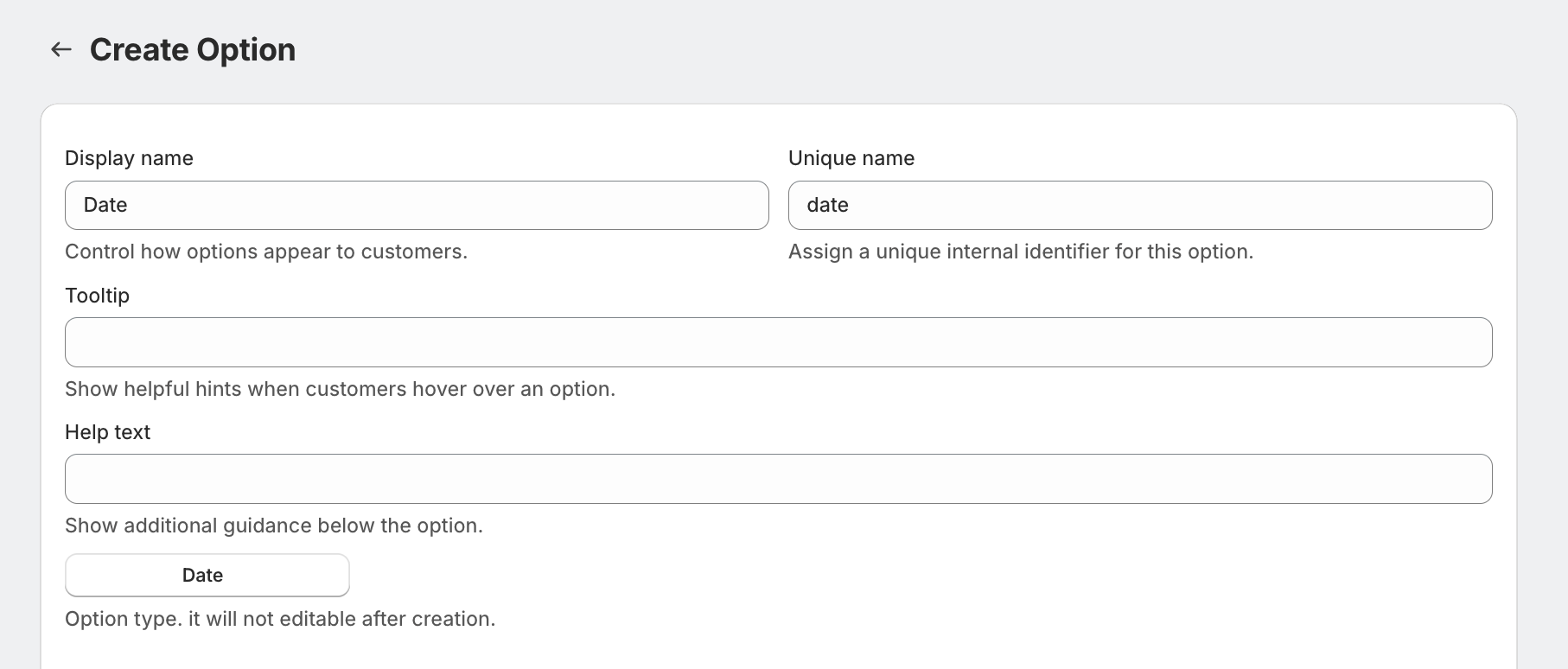
Field Settings Explained
Display Name
This is the label shown to customers.
Examples:
Select Delivery Date
Choose Appointment Date
Event Date
Unique Name
A unique internal identifier for backend use.
Not visible to customers
Helps in tracking and integrations
Tooltip
Provides additional guidance on hover.
Example:
Please select your preferred delivery date.
Help Text
Displayed below the field.
Example:
Delivery available within the next 7 days only.
Option Type
Fixed as Date and cannot be changed after creation.
Advanced Settings
The Date option includes the following advanced configurations:
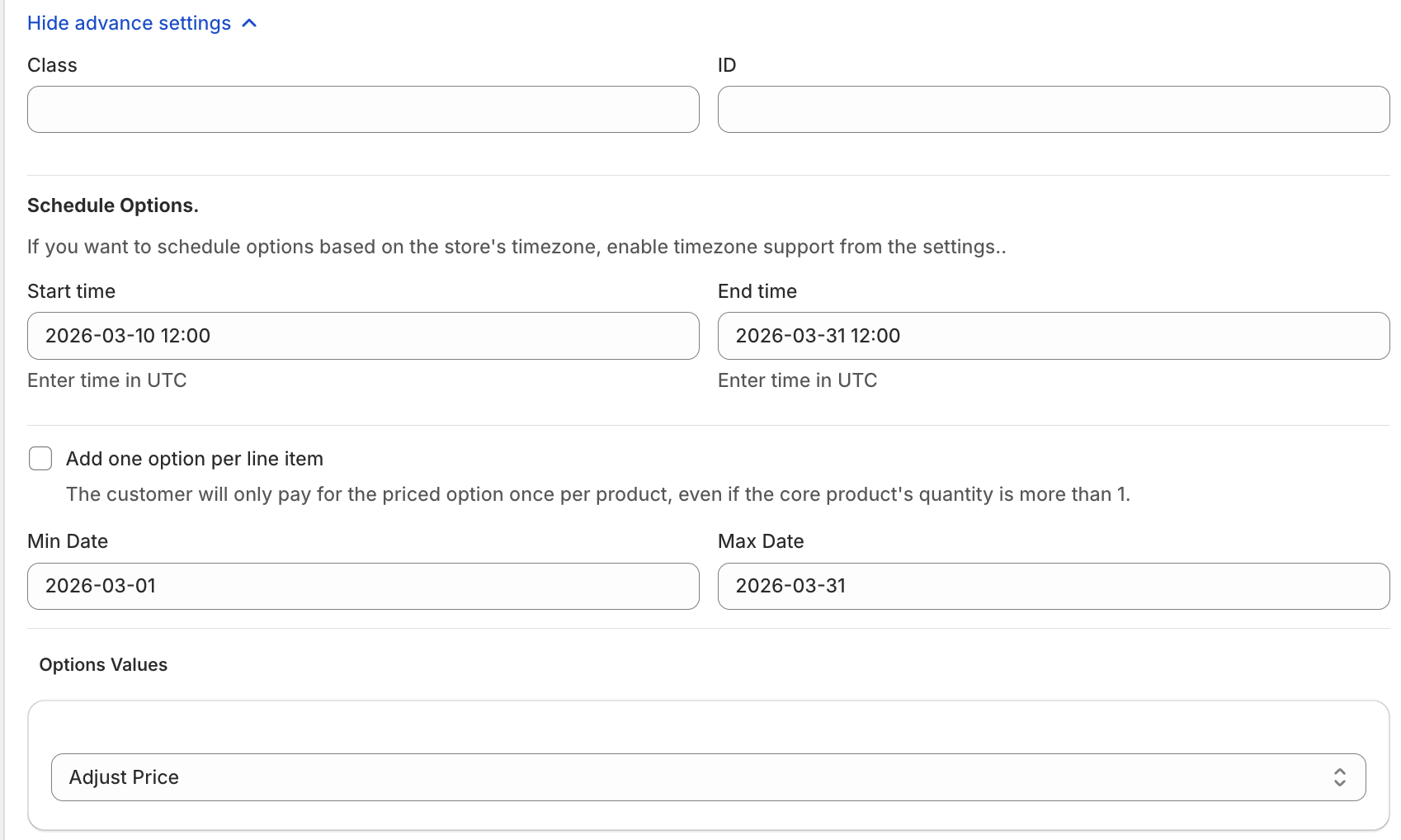
1. Schedule Options
Control when the option is visible using:
Start Time
End Time
(All times are based on UTC unless store timezone is enabled.)
2. Minimum & Maximum Date Selection
You can define:
Minimum selectable date
Maximum selectable date
3. One-Time Charge Option
“Add one option per line item”
When enabled:
Charge is applied only once per product
Even if product quantity is more than 1
Example
Product quantity: 3
Date selection charge: ₹50
Total applied: ₹50 (not ₹150)
4. Custom Class & ID
Assign:
Class
ID
Useful for:
Custom CSS styling
JavaScript logic
Advanced theme customization
Pricing Configuration
The Date option supports flexible pricing models:
1. No Price
No additional charge is applied when selecting a date.
2. Custom Price
Set a fixed price for using the date option.
Example: +₹50 for scheduled delivery
3. Use Existing Variant/Product
Link existing Shopify variant/product with the Date option
5. Percentage-Based Price
Charge calculated as a percentage of product price.
Example:
10% of ₹1000 → ₹100
6. Multiplication-Based Price
Dynamic pricing based on product price.
Example:
Price × 0.3
₹1000 → ₹300
Example Setup
Display Name: Select Delivery Date
Minimum Date: 2 days from today
Maximum Date: 30 days from today
Price: ₹50 fixed
One-Time Charge: Enabled
Was this article helpful?
That’s Great!
Thank you for your feedback
Sorry! We couldn't be helpful
Thank you for your feedback
Feedback sent
We appreciate your effort and will try to fix the article