The Quantity Selector Option in the Sellio Product Options app allows customers to select quantities for specific option values. This is ideal for scenarios where customers need to choose multiple units of add-ons, items, or components along with the main product.
It provides a structured way to control quantities per option, improving flexibility and increasing order value.
A Quantity Selector Option displays a list of values where customers can increase or decrease the quantity for each option value.
Example:
Select Add-ons Quantity
Extra Sauce → Qty: 2
Cheese → Qty: 1
Drinks → Qty: 3
? Customers can choose different quantities for each option value
Basic Configuration
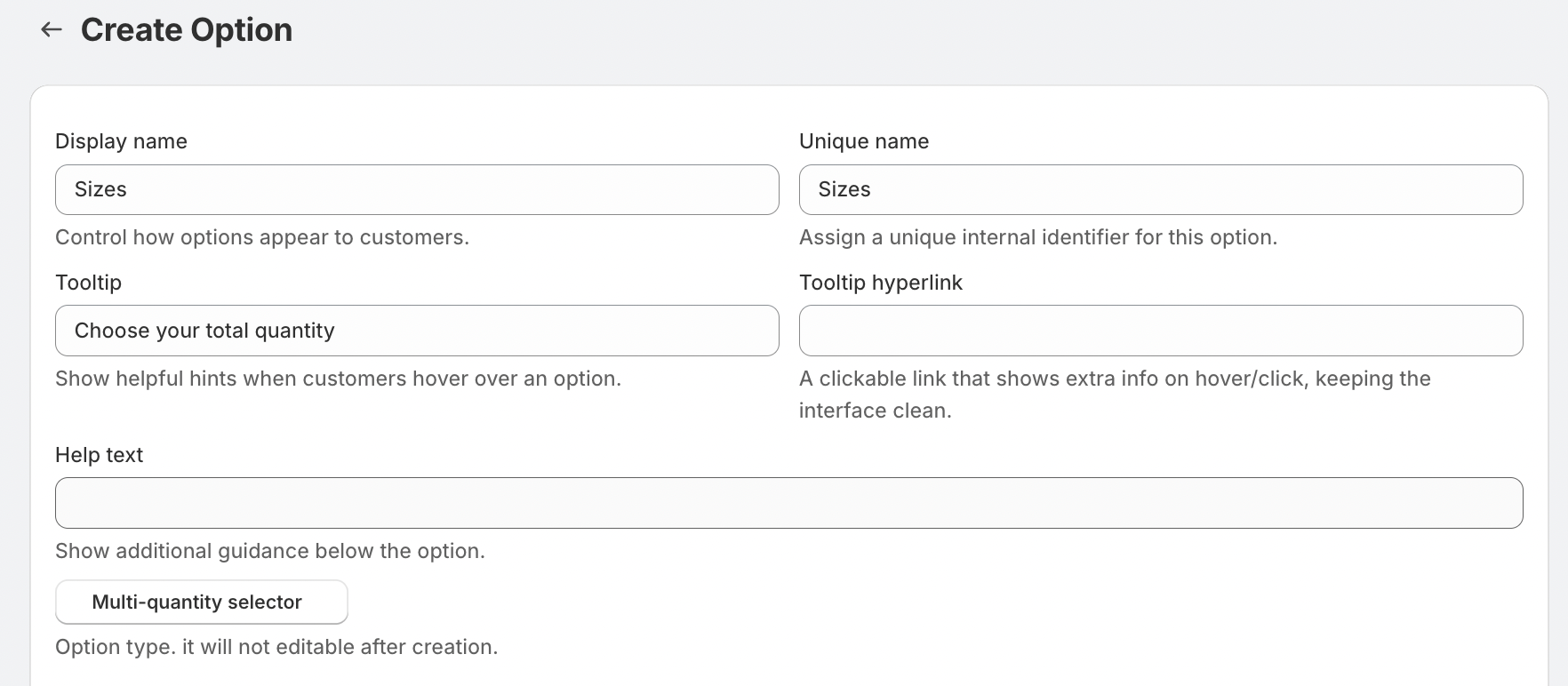
• Display Name
This is the label visible on the product page.
Example: Select Add-ons Quantity
• Unique Name
Internal identifier used for backend operations.
Example: quantity_selector
• Tooltip
Displays additional information when hovered.
Example: Adjust quantity for each option
• Help Text
Shown below the option to guide customers.
Example: You can select quantity for each item
Advanced Settings
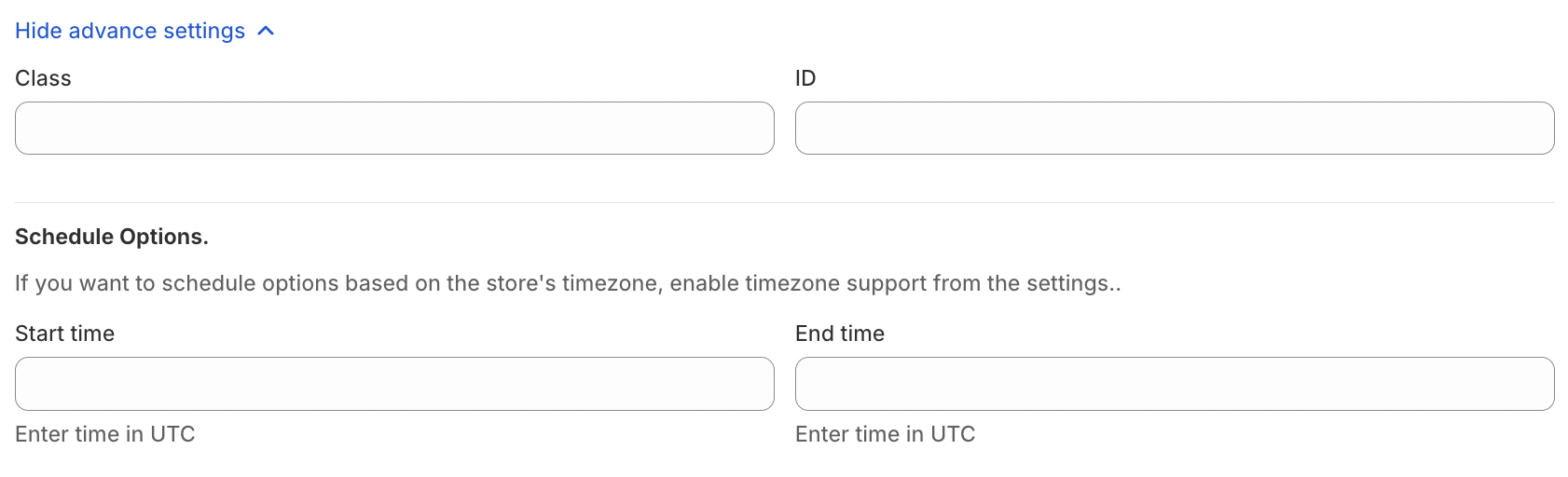
• Class & ID
Used for custom styling or tracking via CSS/JS.
• Schedule Option
Control when the option is visible:
Start Time
End Time
Use Case:
Enable quantity-based add-ons only during specific campaigns or time periods.
• Display Option as Modal / Popup
This setting allows the option to open inside a popup (modal) instead of directly on the product page.

? Benefits:
Keeps product page clean
Better UX for large option lists
More space for descriptions and details
? Use Case:
Combo builders
Add-on selection screens
Detailed customization flows
Option Values Setup
Each value represents an item where quantity can be selected.
• Option Value Name
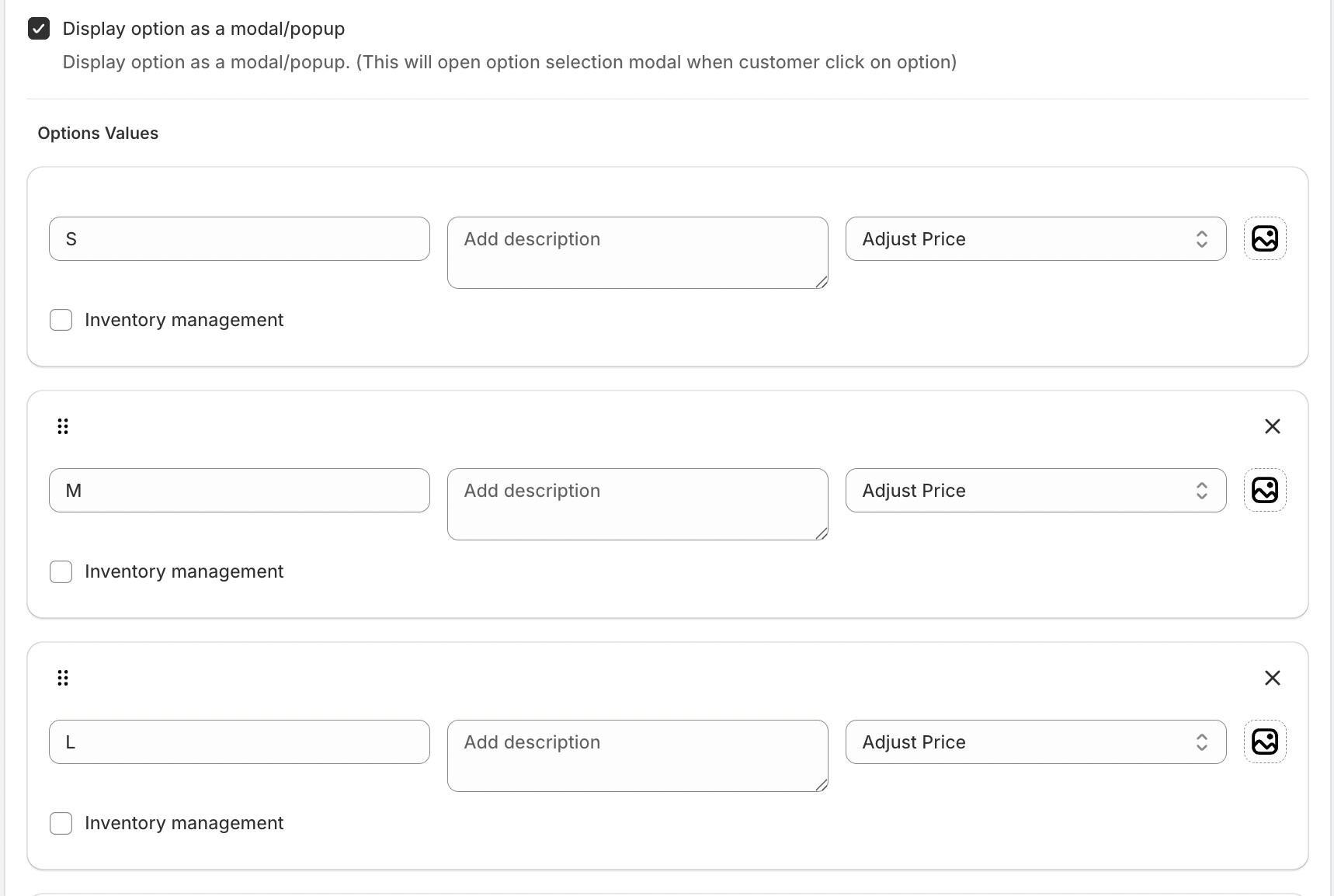
Examples:
Extra Cheese
Cold Drink
Garlic Bread
• Pricing Options
Each value can have its own pricing logic:
No Charge
Free itemCreate Charge (Fixed Price)
Example: Drink = $2 per unitPercentage-Based Price
Example: 10% of product priceMultiplication-Based Price
Price scales based on quantity selected
• Pricing Behavior
? Total price is calculated based on:
(Price per value × Quantity selected)
Example:
Drink → $2 × Qty 3 = $6
Cheese → $1 × Qty 2 = $2
? Total Add-on Price = $8
• Add Description (For Popup Mode)
When using modal/popup display, you can add a description for each value.
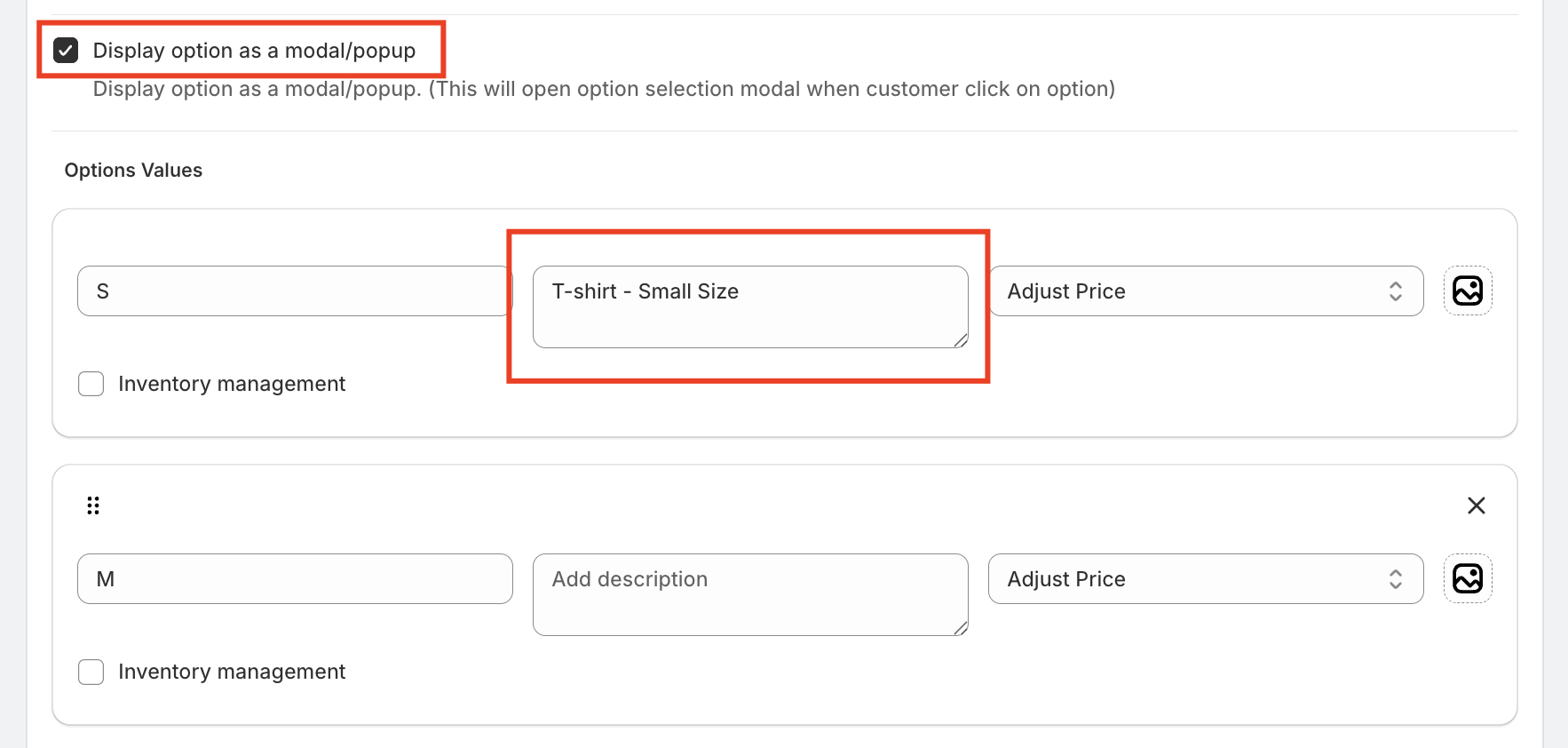
? Example:
Extra Cheese → Rich and creamy mozzarella topping
Garlic Bread → Freshly baked with herbs
? Use Case:
Helps customers understand each option better and improves conversions.
• Inventory Management (Optional)
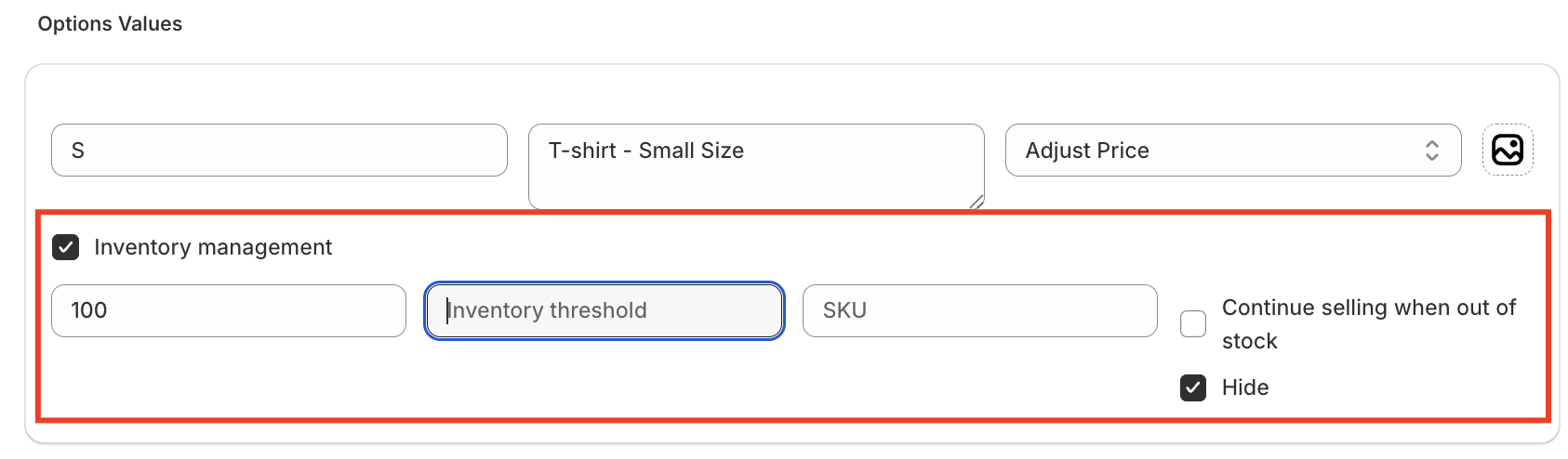
Track stock for each option value:
Set available quantity
Define inventory threshold
Assign SKU
• Stock Behavior
Continue Selling When Out of Stock
Hide Option When Out of Stock
? Use Cases
Food ordering (Add-ons with quantity like toppings, drinks)
Combo builders (Select multiple items with quantity)
Accessories (Buy multiple add-ons with main product)
Wholesale or bulk add-ons
Was this article helpful?
That’s Great!
Thank you for your feedback
Sorry! We couldn't be helpful
Thank you for your feedback
Feedback sent
We appreciate your effort and will try to fix the article