The Radio Button Option in the Sellio Product Options app allows customers to select one option from a predefined list. It is ideal for simple yes/no choices, upgrades, add-ons, or single-choice selections.
This option ensures a clean, user-friendly selection experience, helping customers make quick decisions without confusion.
A Radio Button Option displays multiple choices where only one value can be selected at a time.
Example:
Engraving Option
Yes (+$10)
No, Thanks
This is perfect for:
Add-on services (engraving, gift wrap)
Warranty selection
Custom upgrades
Delivery options
Basic Configuration
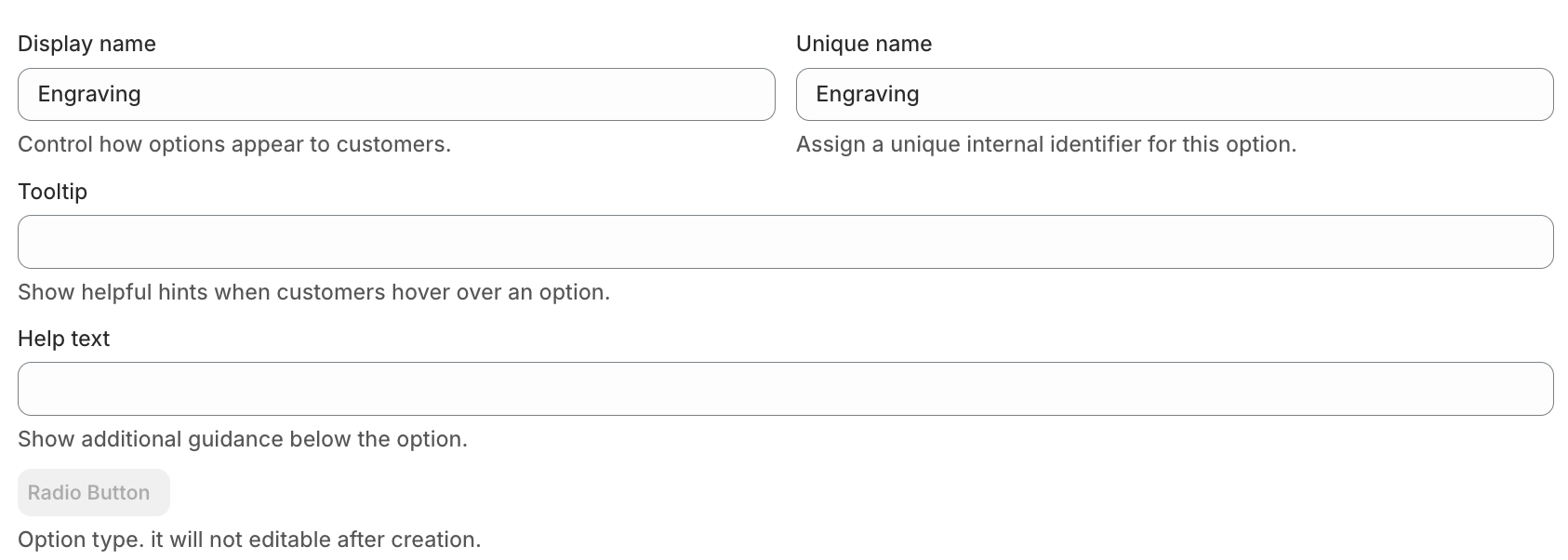
• Display Name
This is the label visible on the product page.
Example: Engraving
• Unique Name
Internal identifier used for backend operations.
Example: engraving_option
• Tooltip
Displays additional information when hovered.
Example: Add custom engraving to your product
• Help Text
Shown below the option to guide customers.
Example: Select “Yes” to add engraving service
Advanced Settings
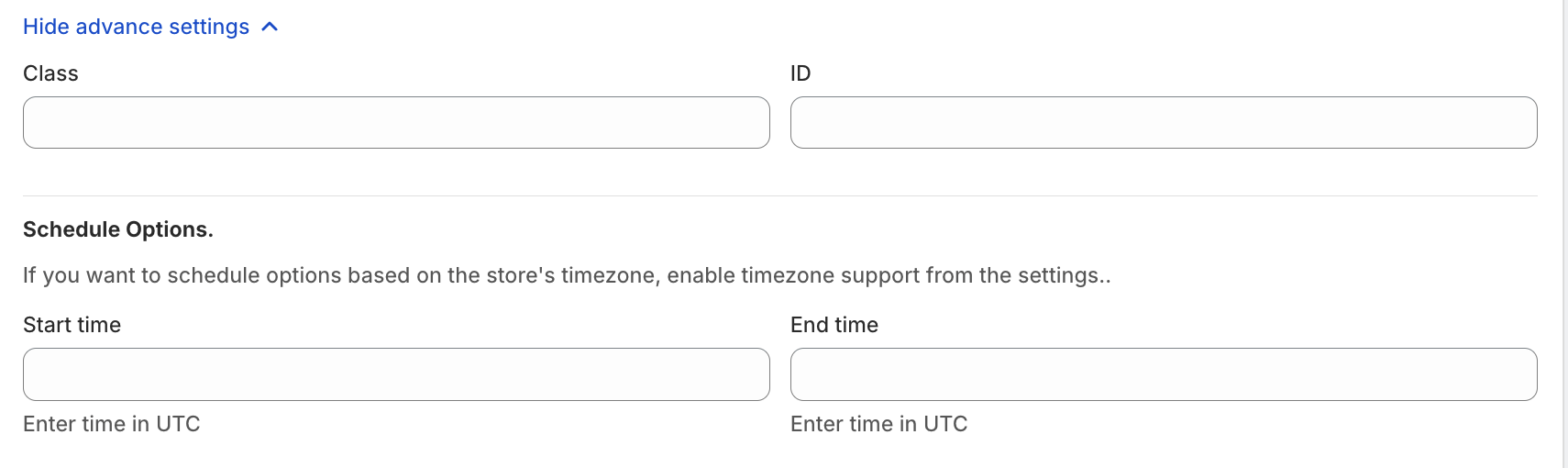
• Class & ID
Used for custom styling or tracking via CSS/JS.
• Schedule Option
Control when the option is visible:
Start Time
End Time
Useful for:
Limited-time offers
Seasonal add-ons
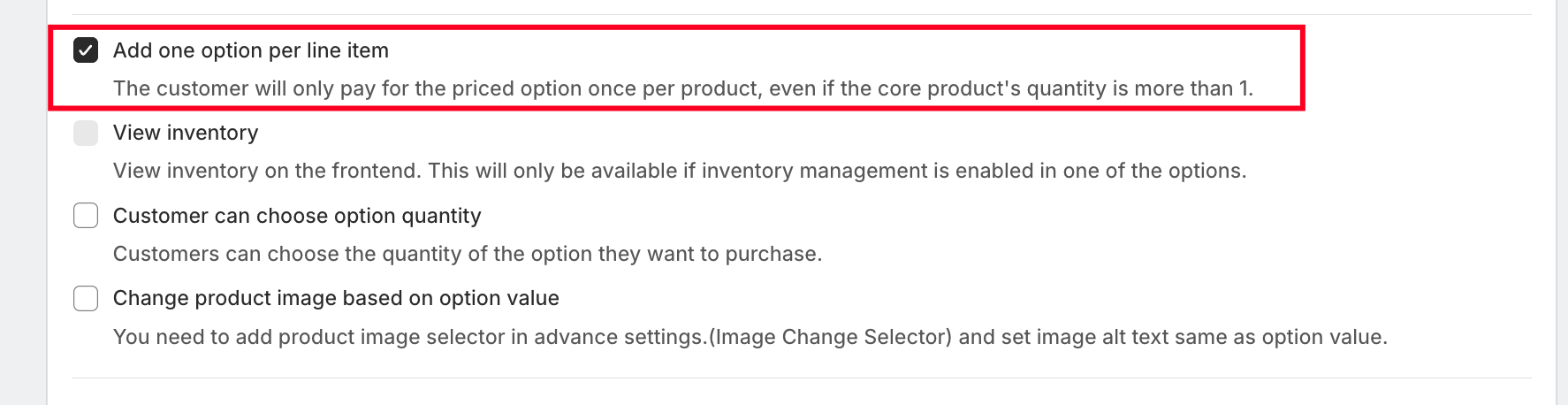
• One-Time Charge
When enabled, the option price is applied only once per product, even if quantity is more than 1.
Example:
If engraving costs $10 and quantity is 3 → Total engraving charge = $10 (not $30)
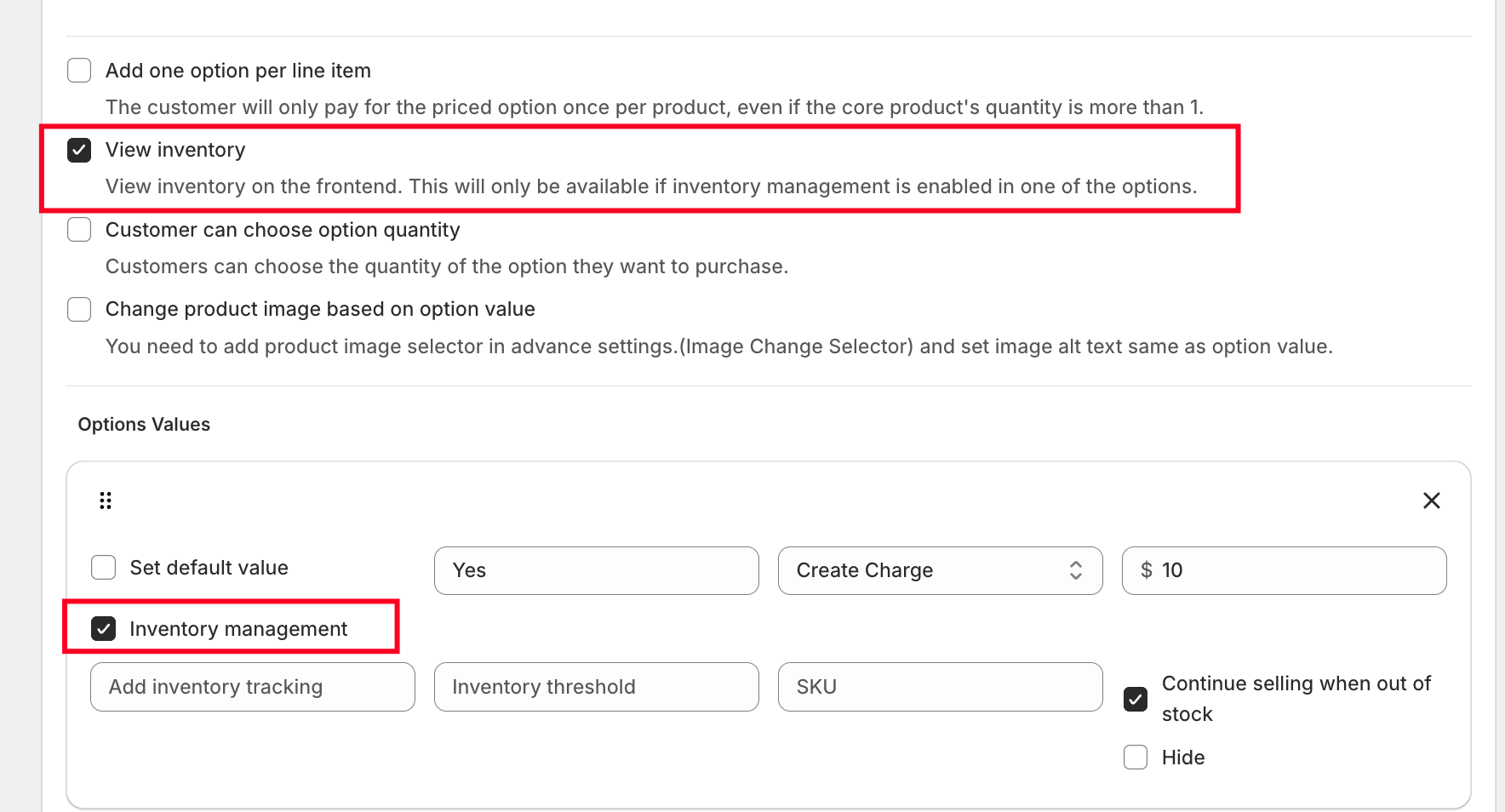
• View Inventory on Frontend
Displays available stock for each swatch value on the product page.
⚠️ Requires inventory management to be enabled.
• Customer Can Choose Option Quantity
Allows customers to select multiple quantities of a specific swatch option.
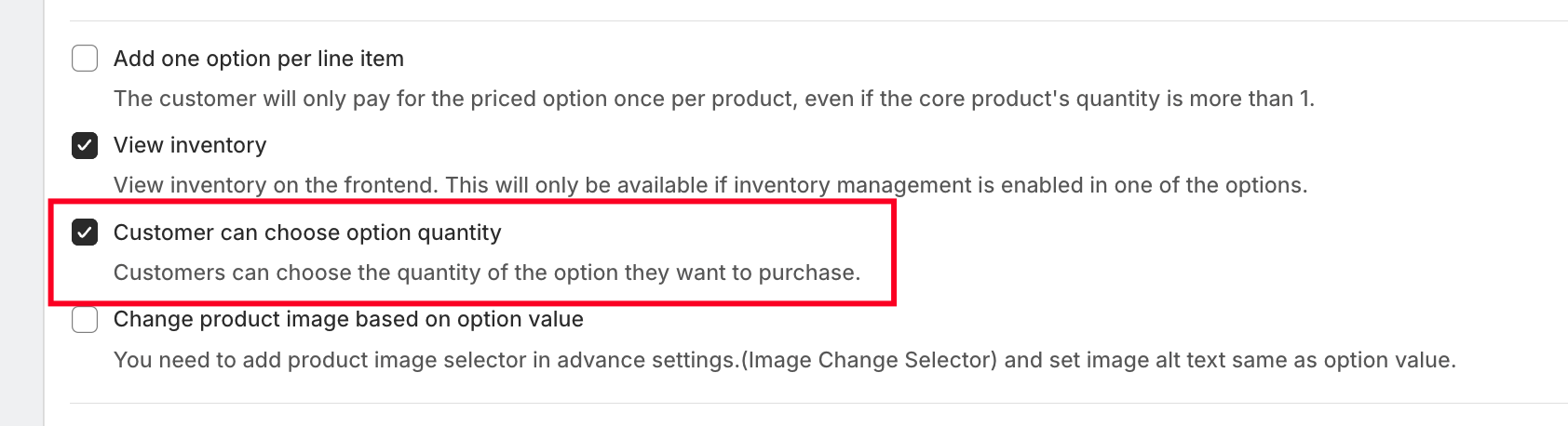
Example:
Buying 2 units of a product and selecting 3 units of a specific design.
• Change Product Image Based on Option Value
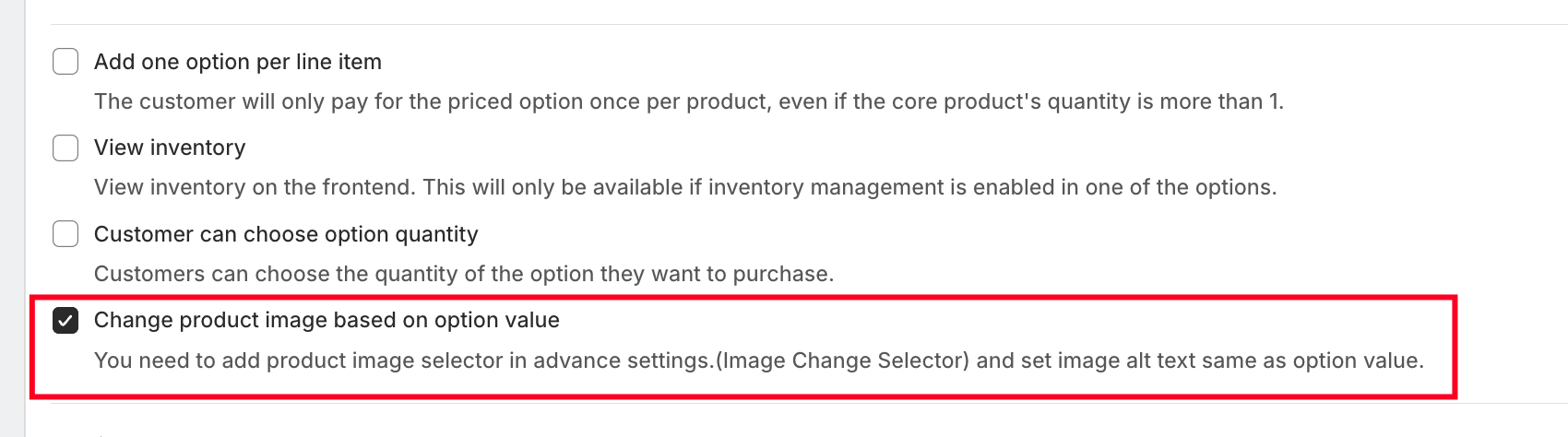
When enabled, selecting a swatch will update the product image.
Important Setup:
The image ALT text must match the option value name
Works with the Image Change Selector setting
Option Values Setup
Each radio button value can be configured individually.
• Option Value Name
Examples:
Yes
No, Thanks
• Pricing Options
1. No Price
No additional charge for numeric input.
2. Custom Price
Set a fixed price.
Example: ₹50 extra
3. Use Existing Variant/Product Price
Link any existing Shopify product or variant.
4. Percentage-Based Price
Charge based on product price.
Example:
10% of ₹1000 → ₹100
5. Multiplication-Based Price
Dynamic pricing based on product price.
Example:
Price × 0.5
₹1000 → ₹500
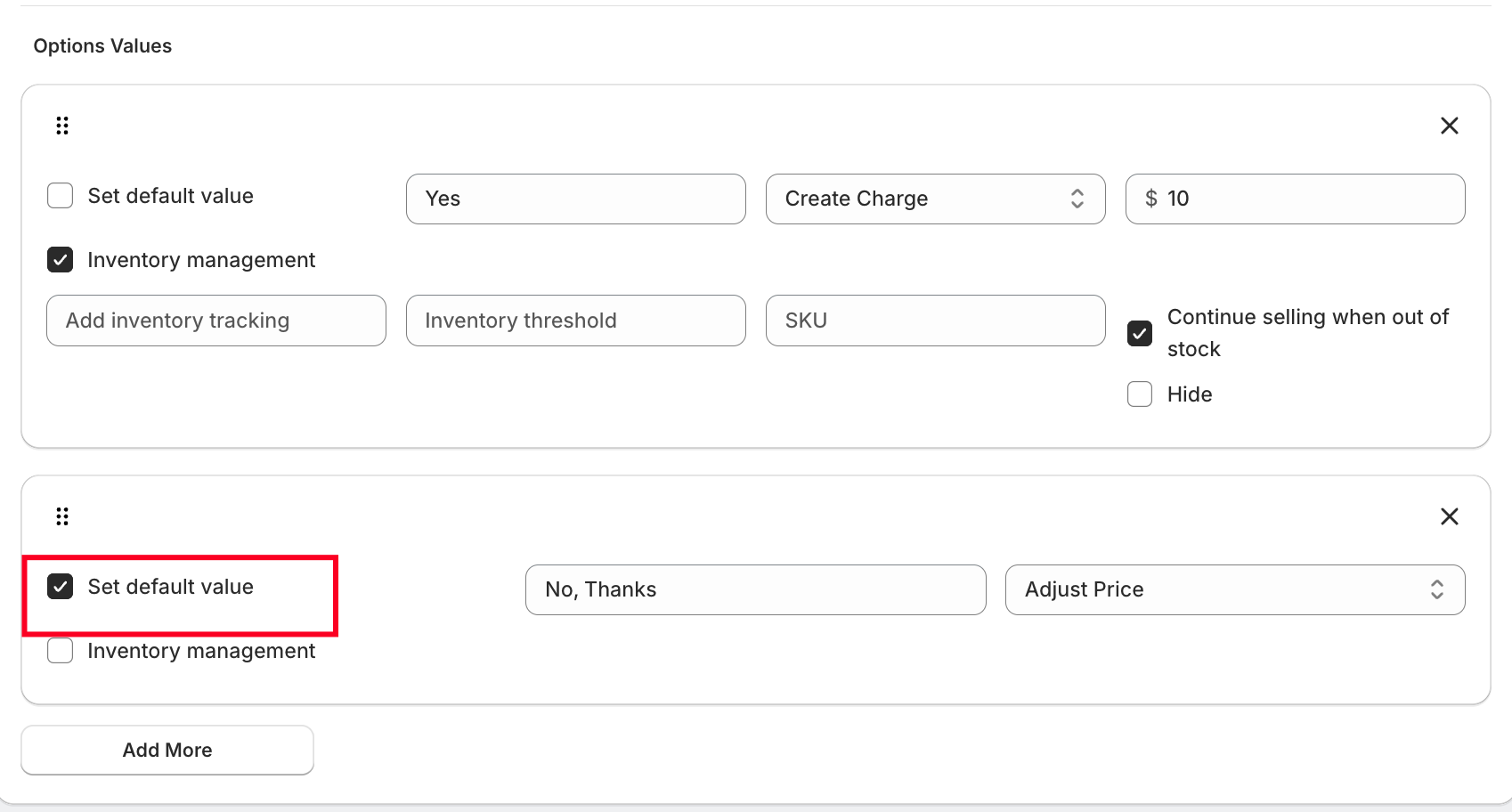
• Set Default Value
Pre-select a value when the page loads.
Example:
Default selection = No, Thanks
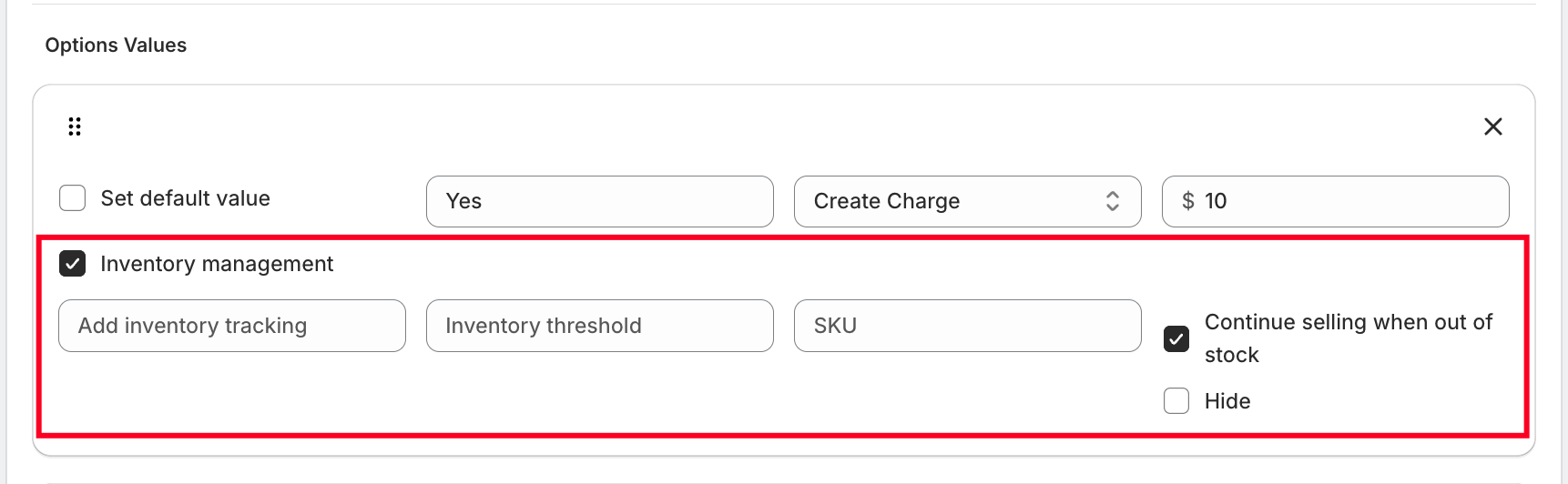
• Inventory Management (Optional)
Track stock for specific option values if needed.
Use Cases
Engraving or personalization options
Gift wrapping selection
Express delivery upgrades
Insurance or warranty add-ons
Service-based add-ons
Was this article helpful?
That’s Great!
Thank you for your feedback
Sorry! We couldn't be helpful
Thank you for your feedback
Feedback sent
We appreciate your effort and will try to fix the article