The Conditions feature allows merchants to create dynamic product customization experiences by showing or hiding options based on customer selections.
Instead of displaying all options at once, merchants can set up rules that control when specific options should appear. This keeps the product page clean, simple, and easier for customers to use.
For example, certain options may only be relevant when a customer selects a specific product feature. Using conditions, merchants can automatically show the right options at the right time.
Setting up conditions is quick and simple.
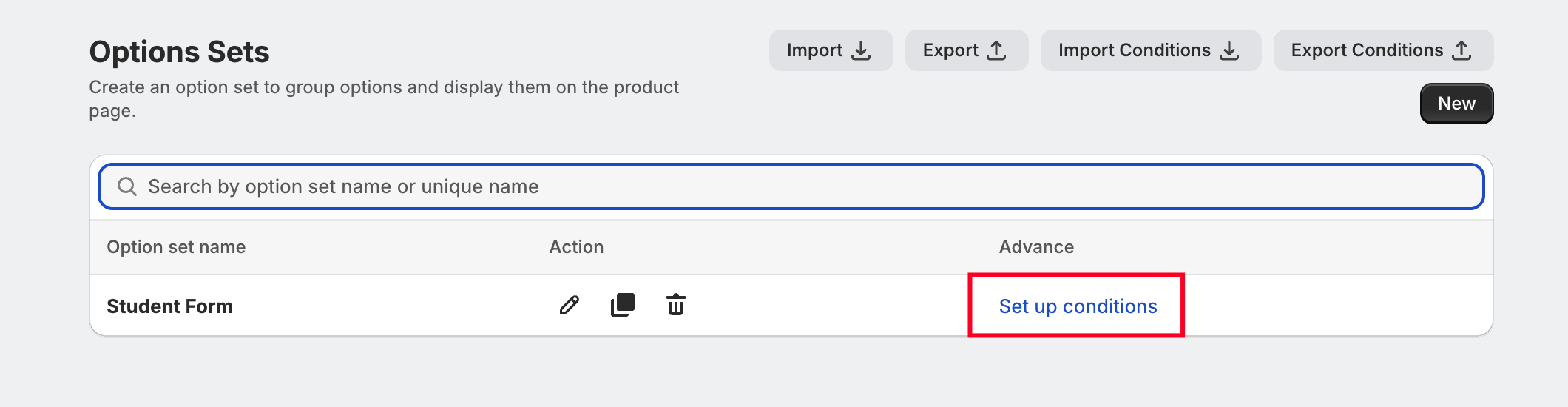
Go to the Option Sets section in the app.
Open the specific Option Set where you want to apply the condition.
Click on Set Up Conditions.
Select New Condition.
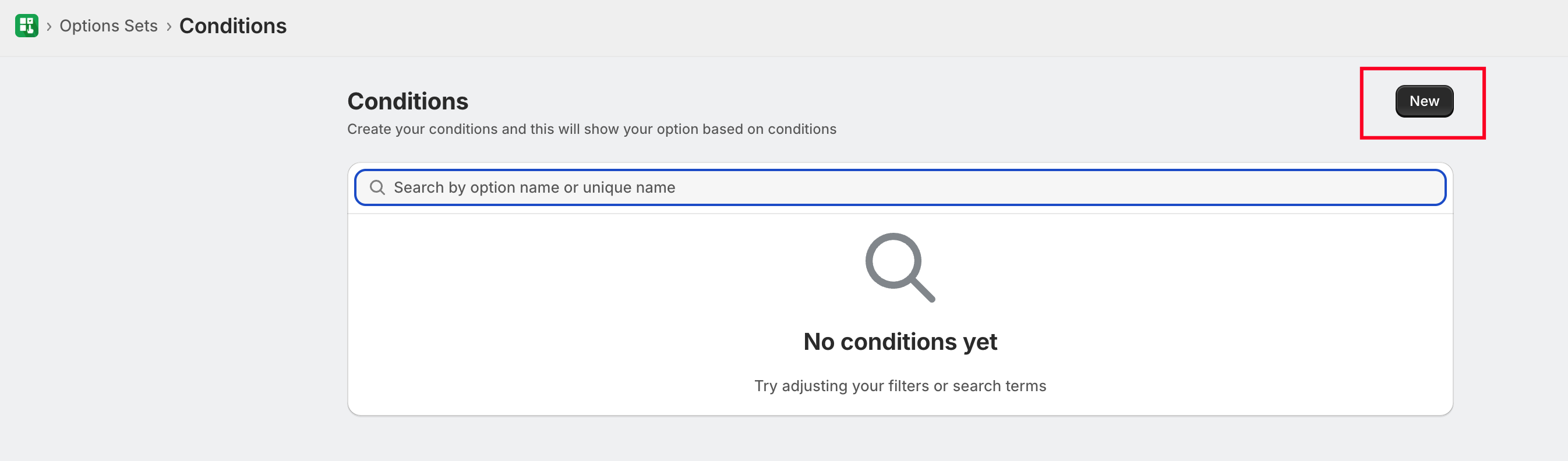
This will open the condition builder where merchants can define the rules and actions.
Important Note
Conditions can only be created based on selection-type options, such as:
Dropdown
Radio buttons
Swatches
Checkboxes
Multi-select dropdown
Conditions cannot be created based on input-type options, such as:
Text fields
Paragraph fields
Email
Phone
Date or time inputs
This is because input fields collect user data rather than predefined selections.
How Conditions Work
Each condition includes two main parts:
1. Rule (Trigger)
The rule defines when the condition should activate based on the customer's selection.
2. Action (Result)
The action determines what should happen when the rule is triggered, such as showing or hiding another option.
This system helps create smart and interactive product forms.
Example: Showing a Custom Text Field
Let’s look at a simple example to understand how conditions work.
A merchant sells customizable gifts. Customers can choose whether they want engraving on the product.
Step 1: Create the Main Option
Option Name: Add Engraving
Option Type: Radio Buttons
Choices:
Yes
No
Step 2: Create the Second Option
Option Name: Enter Engraving Text
Option Type: Single Line Text
This option allows customers to enter the message they want engraved.
Step 3: Set the Condition
Now the merchant sets a rule so the text field only appears when needed.
Condition Rule:
If Add Engraving = Yes
Condition Action:
Show "Enter Engraving Text" option
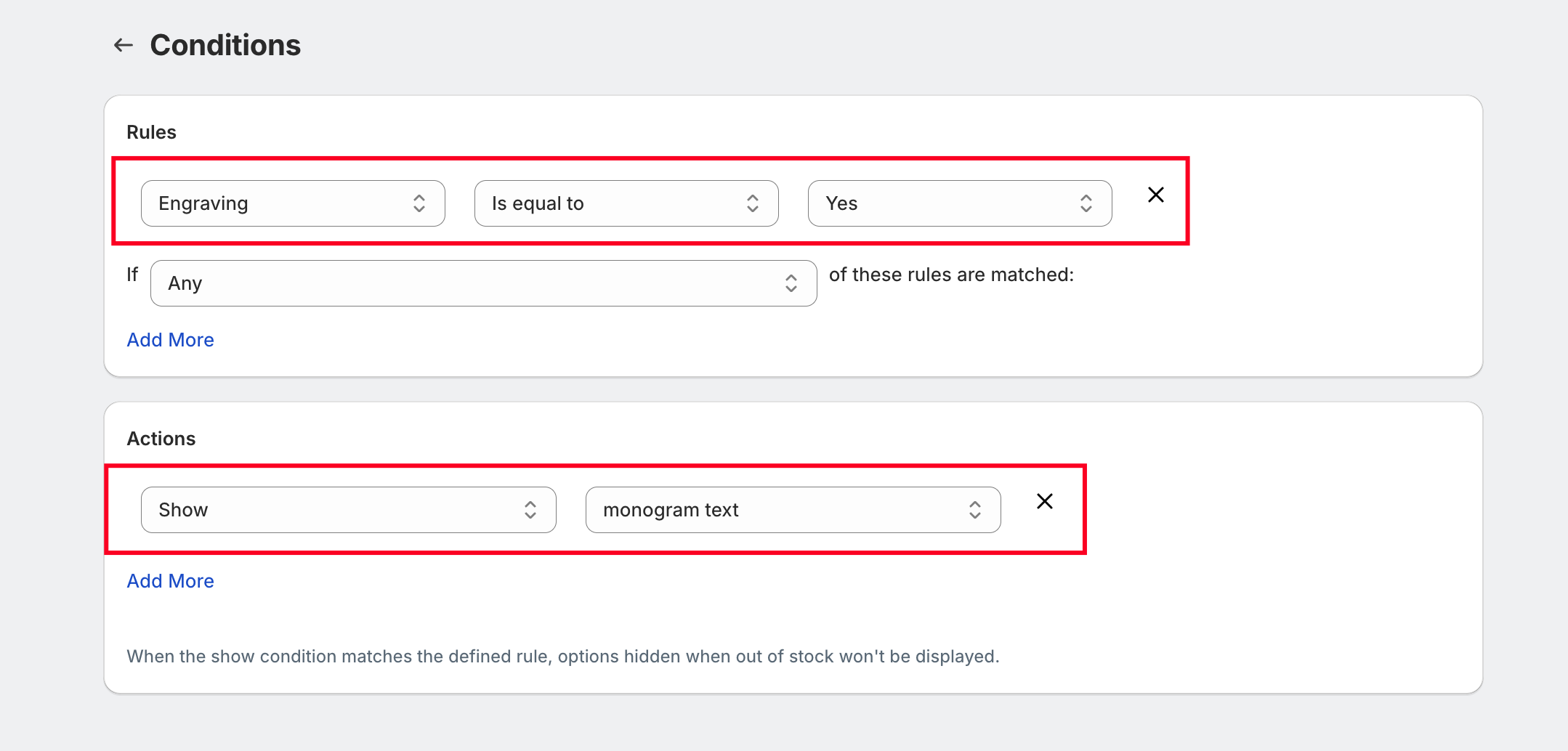
If the customer selects Yes for engraving, the text field automatically appears so they can enter their message.
If they select No, the text field remains hidden.
This makes the product page cleaner and easier to navigate.
Was this article helpful?
That’s Great!
Thank you for your feedback
Sorry! We couldn't be helpful
Thank you for your feedback
Feedback sent
We appreciate your effort and will try to fix the article