The Formula Based Option in the Sellio Product Options app allows merchants to calculate dynamic pricing based on user inputs using mathematical formulas. This is ideal for products where pricing depends on measurements, quantities, or custom calculations.
It enables advanced customization by letting merchants define formulas like multiplication, addition, subtraction, or division to automatically calculate the final price.
A Formula Based Option allows customers to input values (like length, width, quantity, etc.), and the app calculates the final price based on a predefined formula.
Example:
Calculate Area-Based Pricing
Length = 10
Width = 5
? Formula:
Length × Width = Area
? Final price is calculated based on the result
Basic Configuration
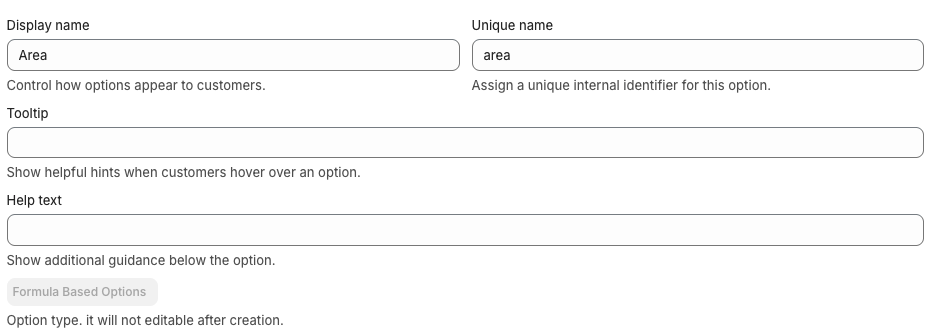
• Display Name
This is the label visible on the product page.
Example: Enter Dimensions
• Unique Name
Internal identifier used for backend operations.
Example: area_calculator
• Tooltip
Displays additional information when hovered.
Example: Enter values to calculate price
• Help Text
Shown below the option to guide customers.
Example: Provide dimensions to get accurate pricing
Advanced Settings
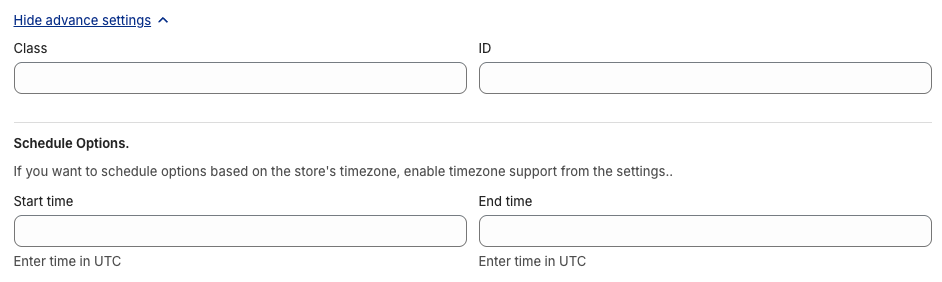
• Class & ID
Used for custom styling or tracking via CSS/JS.
• Schedule Option
Control when the option is visible:
Start Time
End Time
Use Case:
Enable measurement-based pricing during specific campaigns or product availability.
Option Values Setup
In this option, values act as input fields used in the formula.
• Input Fields (Variables)
Each value represents a variable in the formula.
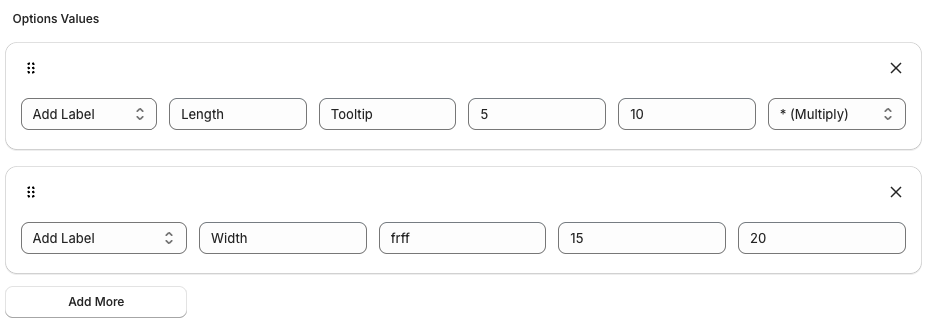
Example Setup:
Field 1: Length
Label: Length
Minimum Value: 1
Maximum Value: 100
Field 2: Width
Label: Width
Minimum Value: 1
Maximum Value: 100
• Validation (Min / Max Limits)
You can set restrictions for each field:
Minimum Value
Maximum Value
? Example:
Length must be between 1–100
? Use Case:
Prevents invalid or unrealistic inputs.
Formula Configuration
Merchants can define how the final value is calculated.
• Supported Formula Types:
Multiplication
Addition
Subtraction
Division
• Example Use Cases:
1. Area Calculation (Most Common)
Inputs: Length × Width
Formula Type: Multiplication
? Use Case:
Flooring, tiles, carpets, wallpapers
2. Total Quantity
Inputs: A + B
Formula Type: Addition
? Use Case:
Combining quantities
3. Price Difference
Inputs: A − B
Formula Type: Subtraction
? Use Case:
Discount or adjustment calculations
4. Unit Cost Calculation
Inputs: A ÷ B
Formula Type: Division
? Use Case:
Per-unit pricing
Pricing Behavior
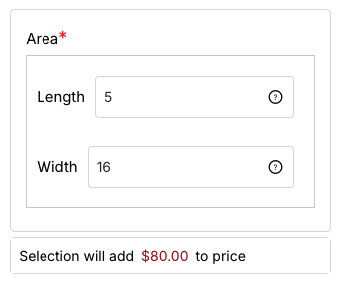
The final price is calculated based on the Formula amongst values.
Example:
Length = 10
Width = 5
Formula: Multiplication
Result = 50
Use Cases
Flooring or tile area calculation
Fabric or material measurement pricing
Printing based on size (banners, posters)
Custom furniture sizing
Construction or interior services
Was this article helpful?
That’s Great!
Thank you for your feedback
Sorry! We couldn't be helpful
Thank you for your feedback
Feedback sent
We appreciate your effort and will try to fix the article