The Dropdown Option in the Sellio Product Options app allows customers to select one value from a collapsible list. It is perfect for displaying multiple choices in a clean and space-saving format, especially when you have several options to present.
A Dropdown Option shows a list of values in a compact menu where customers can select only one option at a time.
Basic Configuration
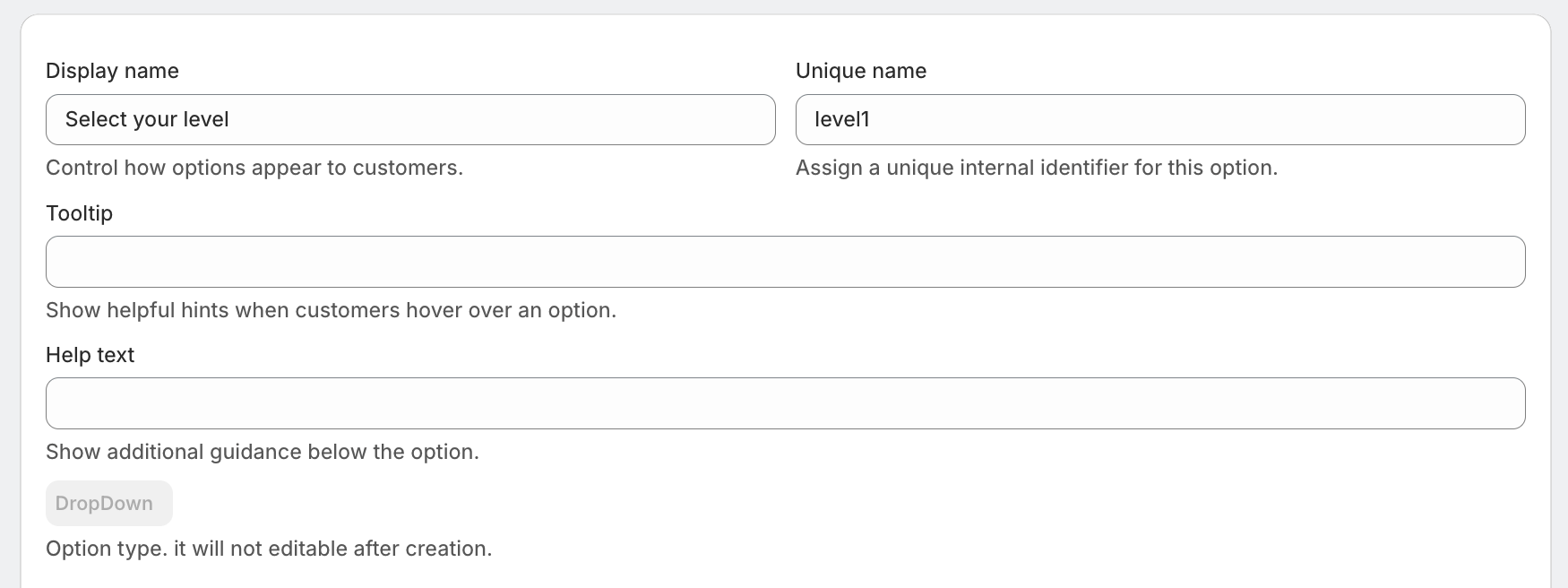
• Display Name
The title shown on the product page.
Example: Select Your Level
• Unique Name
Internal identifier used for backend tracking.
Example: level1
• Tooltip
Shows extra information on hover.
Example: Choose your experience level
• Help Text
Displayed below the dropdown for guidance.
Example: Select the level that best suits your needs
Advanced Settings
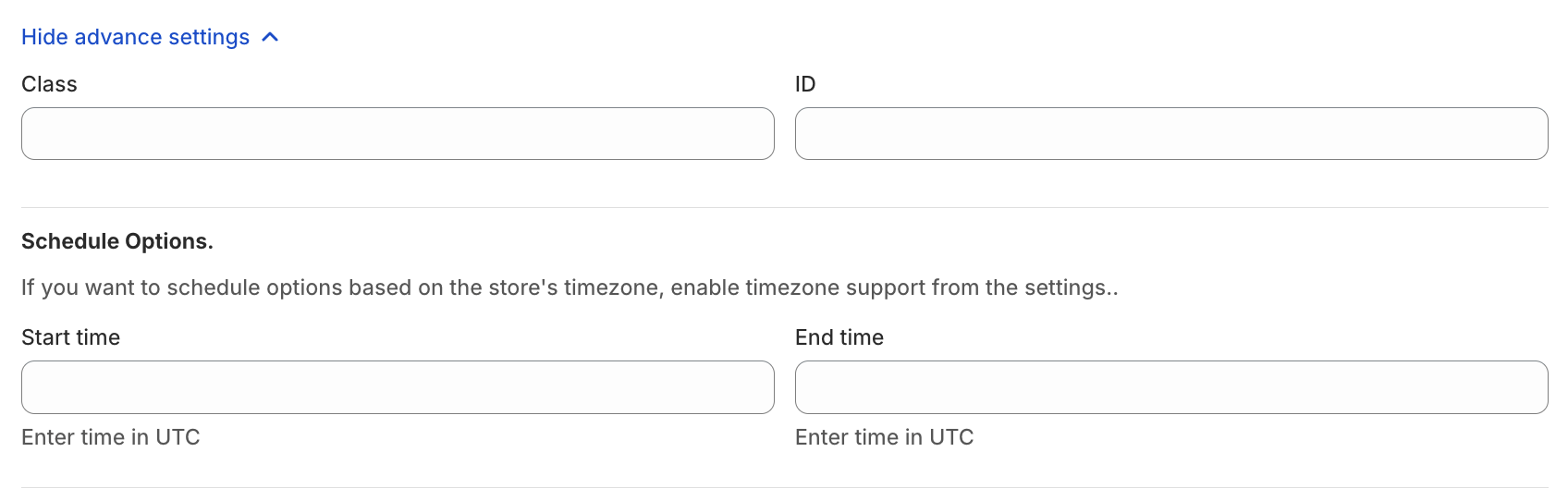
• Class & ID
Used for custom styling or developer-level customization.
• Schedule Option
Control when the dropdown appears:
Start Time
End Time
Useful for:
Time-based offerings
Seasonal services
Limited availability products
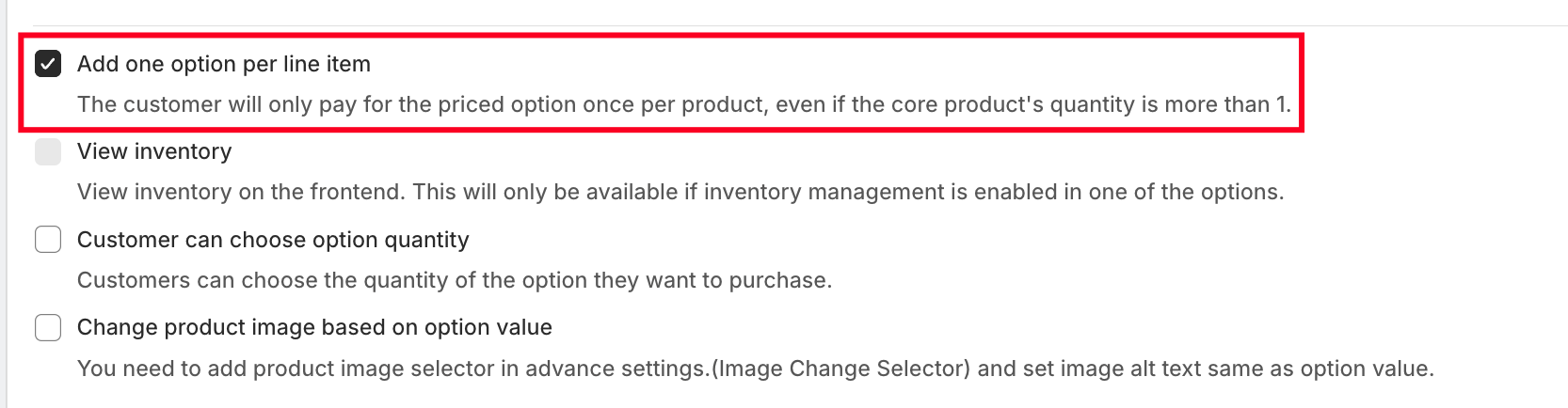
• One-Time Charge
If enabled, the selected option’s price is applied only once per product, even if product quantity is more than one.
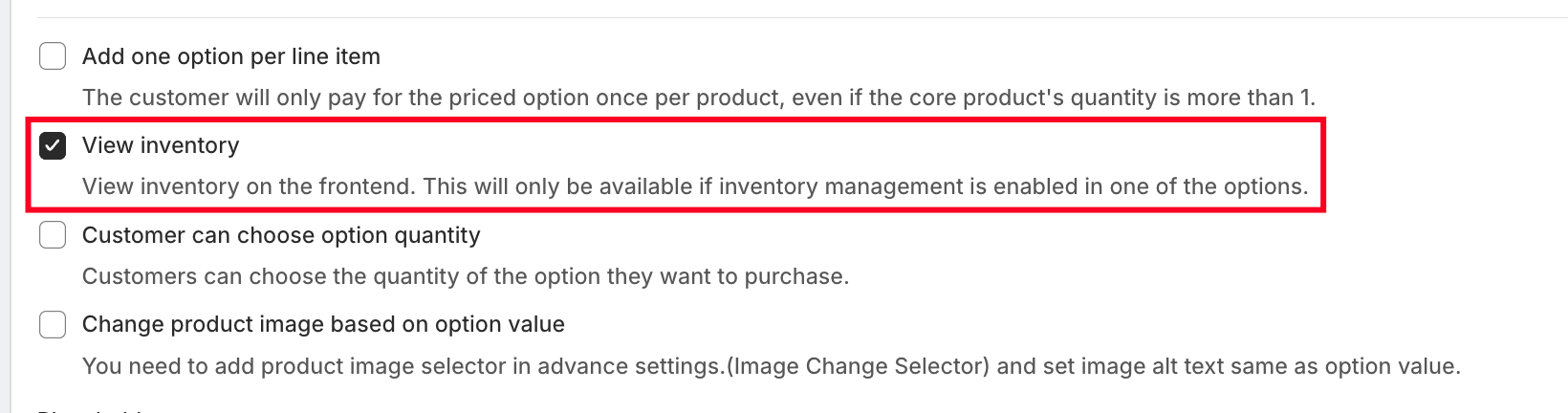
• View Inventory on Frontend
Displays available stock for each swatch value on the product page.
⚠️ Requires inventory management to be enabled.
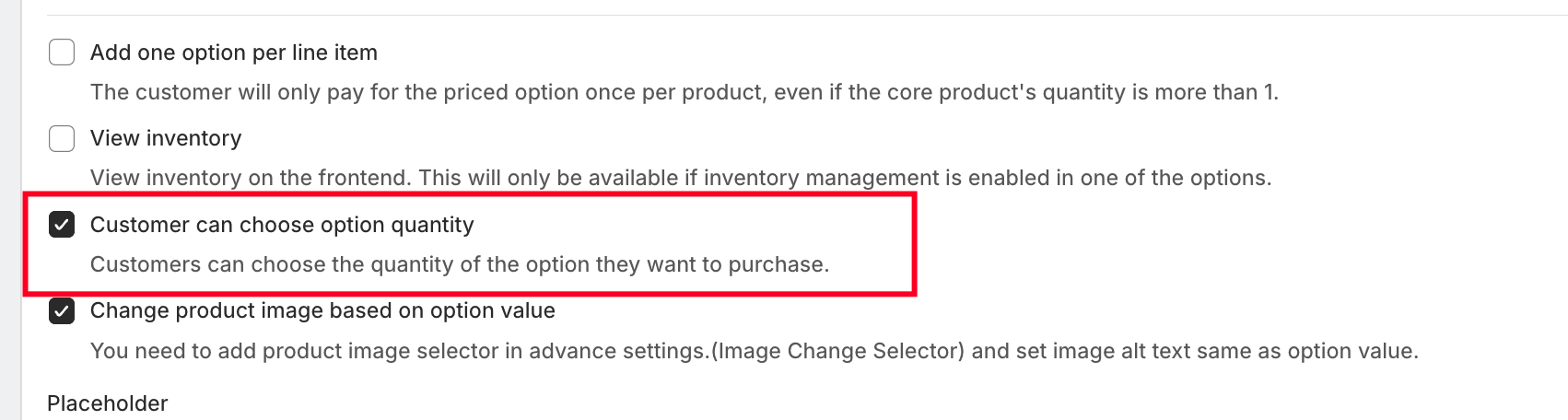
• Customer Can Choose Option Quantity
Allows customers to select multiple quantities of a specific swatch option.
• Change Product Image Based on Option Value
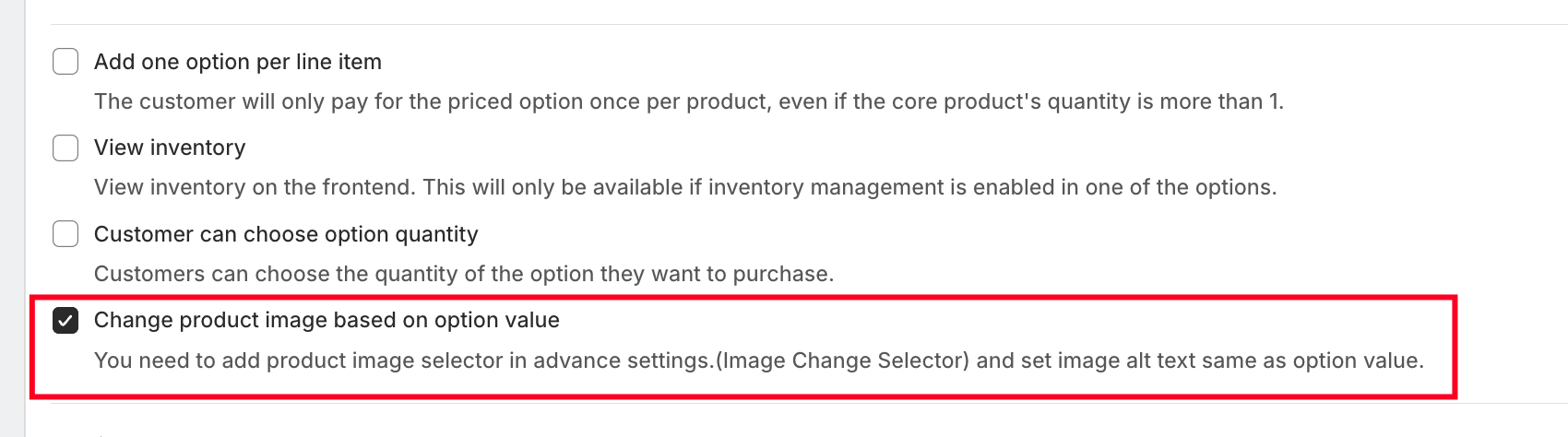
When enabled, selecting a swatch will update the product image.
Important Setup:
The image ALT text must match the option value name
Works with the Image Change Selector setting
Option Values Setup
Each dropdown value can be configured individually.
• Option Value Name
Examples:
Beginner (Level 1–2 / Easy)
Intermediate (Level 3)
Advanced (Level 4)
• Pricing Options
1. No Price
No additional charge for numeric input.
2. Custom Price
Set a fixed price.
Example: ₹50 extra
3. Use Existing Variant/Product Price
Link any existing Shopify product or variant.
4. Percentage-Based Price
Charge based on product price.
Example:
10% of ₹1000 → ₹100
5. Multiplication-Based Price
Dynamic pricing based on product price.
Example:
Price × 0.5
₹1000 → ₹500
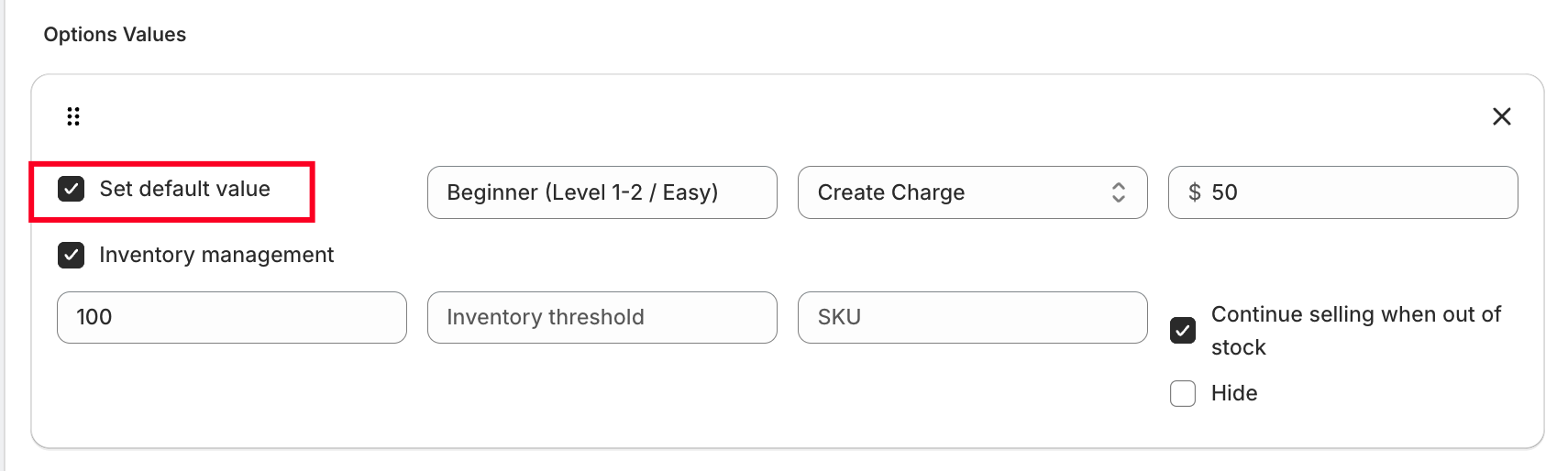
• Set Default Value
Pre-select a value when the page loads.
Example: Beginner selected by default
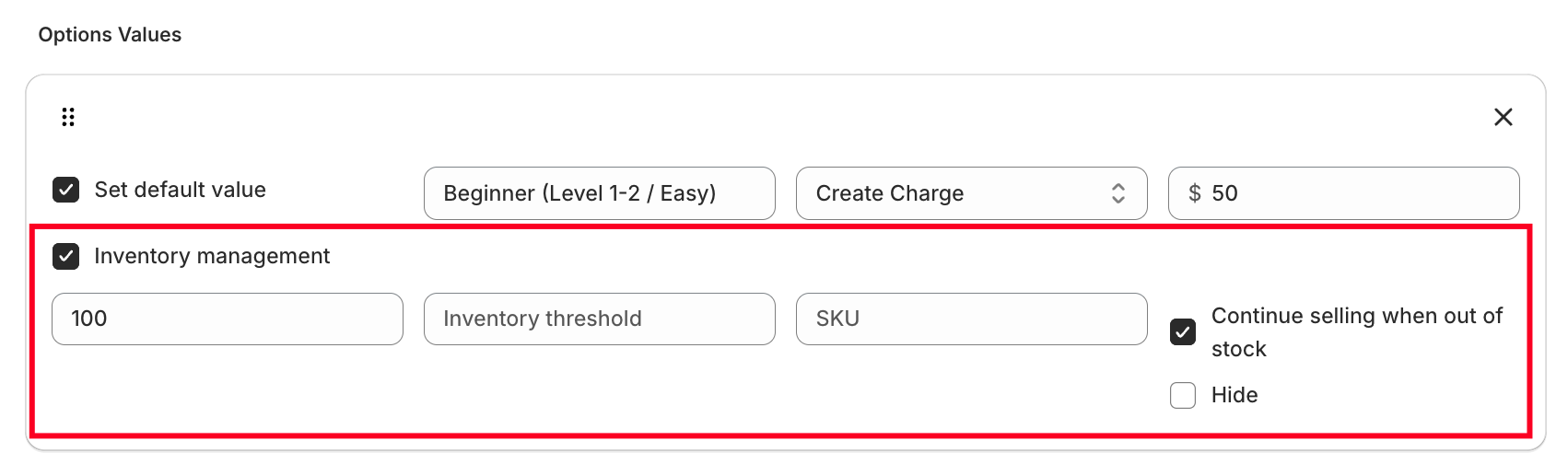
• Inventory Management (Optional)
Track stock for each dropdown value if needed.
? Use Cases
Course or service levels (Beginner → Advanced)
Subscription tiers
Product bundles or packages
Size or configuration selections
Custom service pricing
Was this article helpful?
That’s Great!
Thank you for your feedback
Sorry! We couldn't be helpful
Thank you for your feedback
Feedback sent
We appreciate your effort and will try to fix the article