The Swatch Option in the Sellio Product Options app allows merchants to present product choices visually using colors, images, or patterns. This is especially useful for products like apparel, accessories, prints, or customizable items where appearance plays a key role in the buying decision.
With swatches, customers can see and select options visually, improving both user experience and conversion rates.
A Swatch Option replaces traditional dropdowns or buttons with visual selectors such as:
Color circles
Image thumbnails
Pattern previews
For example, instead of selecting “Red” from a dropdown, customers can simply click on a red color/image swatch.
Basic Configuration
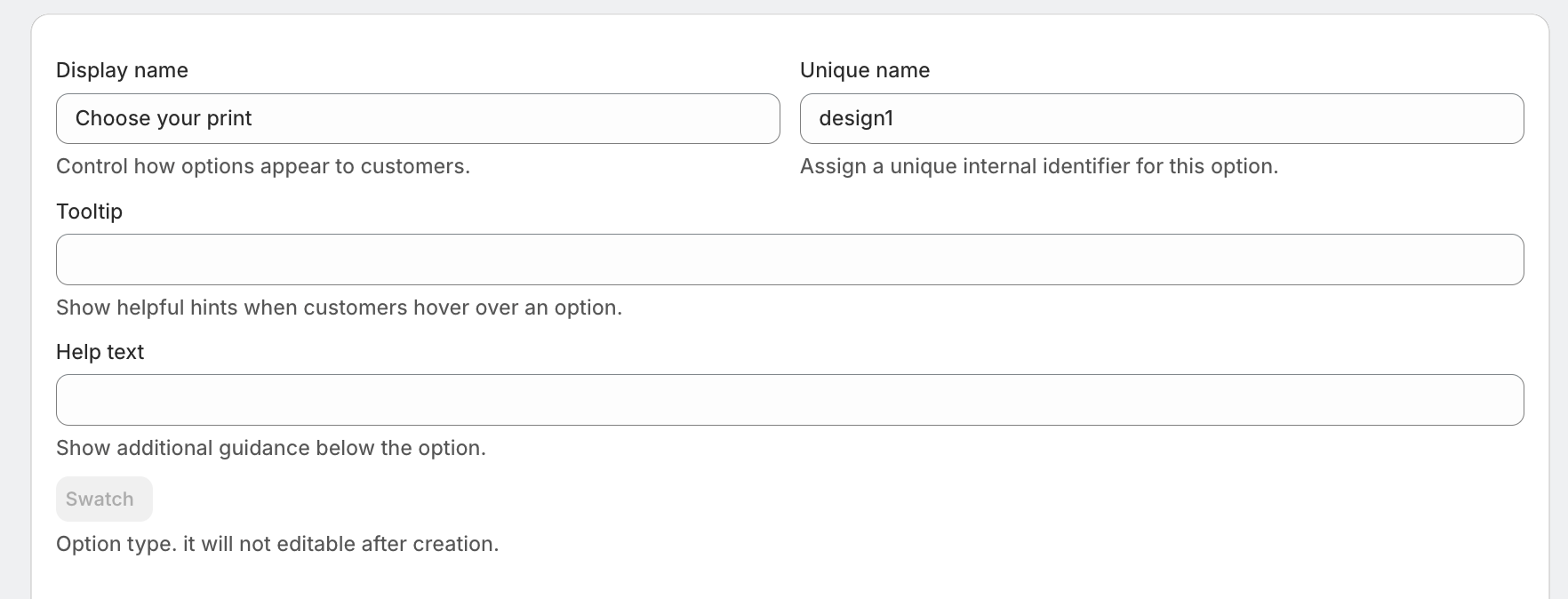
1. Display Name
This is the label shown to customers on the product page.
Example: Choose Your Print
2. Unique Name
An internal identifier used to manage the option in the backend.
Example: design1
3. Tooltip
Displays additional information when users hover over the option.
Example: Select your preferred design style
4. Help Text
Shown below the option to guide customers.
Example: Choose a print that matches your style
? Advanced Settings
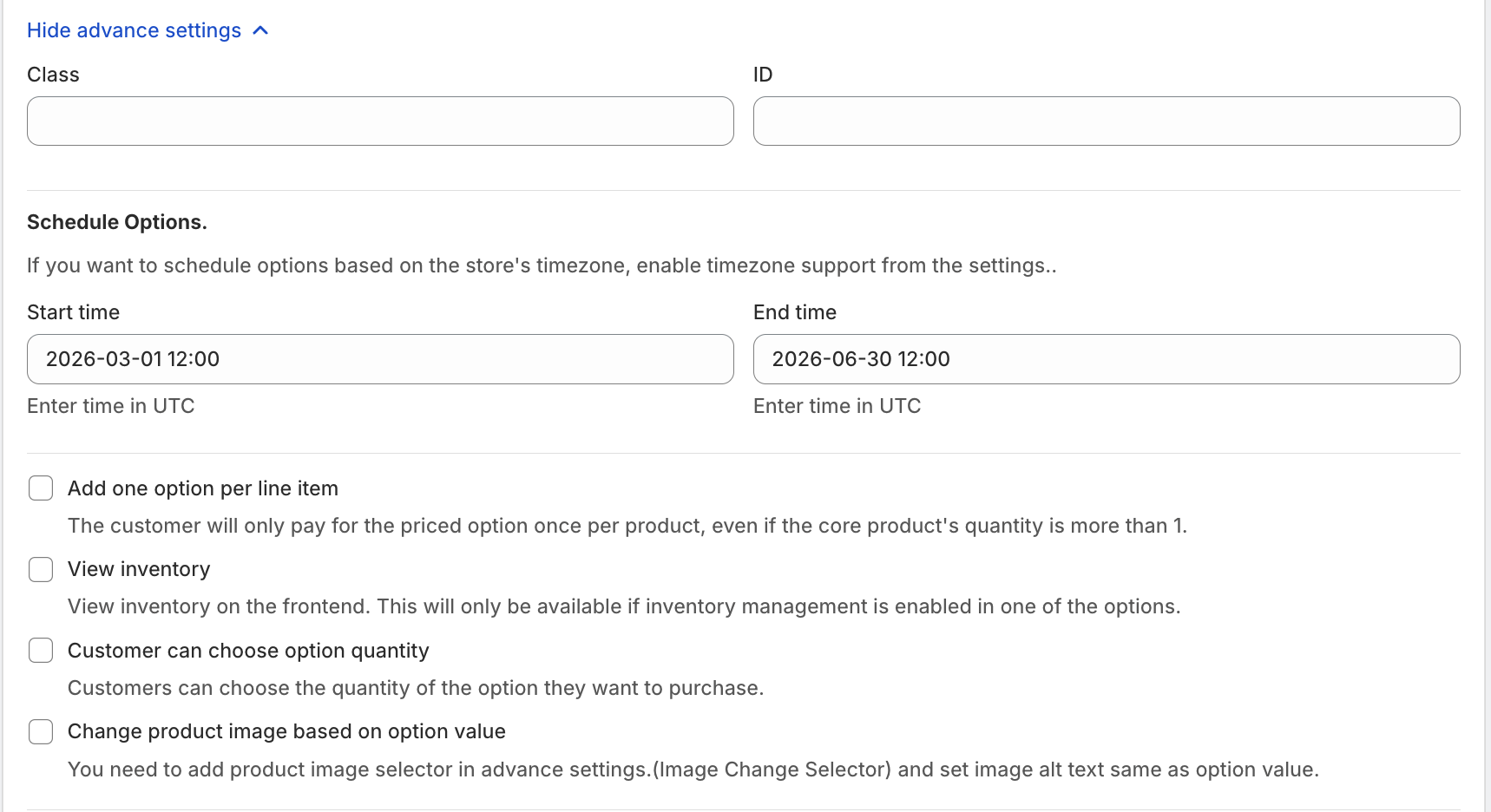
• Class & ID
Used for custom styling and targeting via CSS or JavaScript.
• Schedule Options
Merchants can control when the swatch appears:
Start Time
End Time
Useful for:
Seasonal collections
Limited-time designs
Campaign-based products
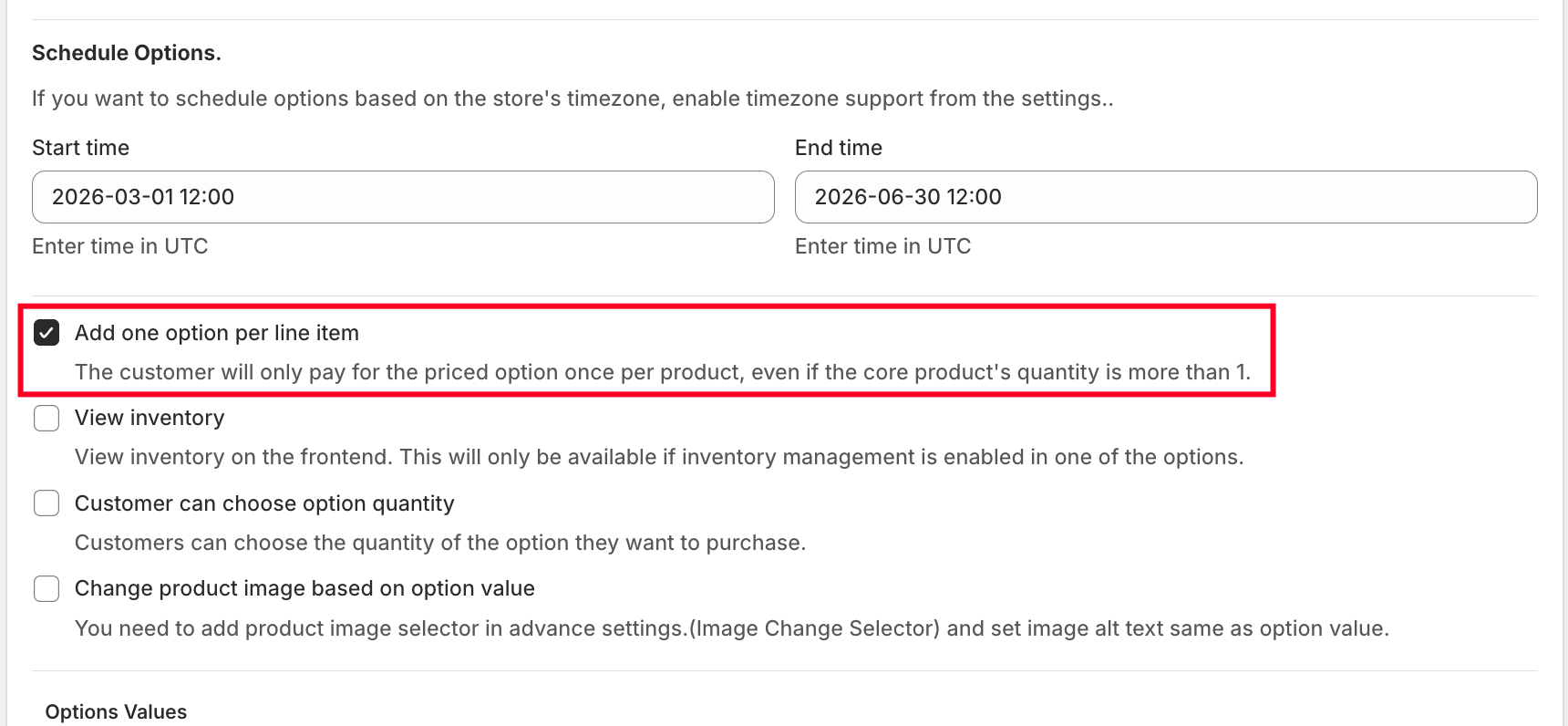
• One-Time Charge
If enabled, the swatch option price is applied only once per product, even if the product quantity is more than one.
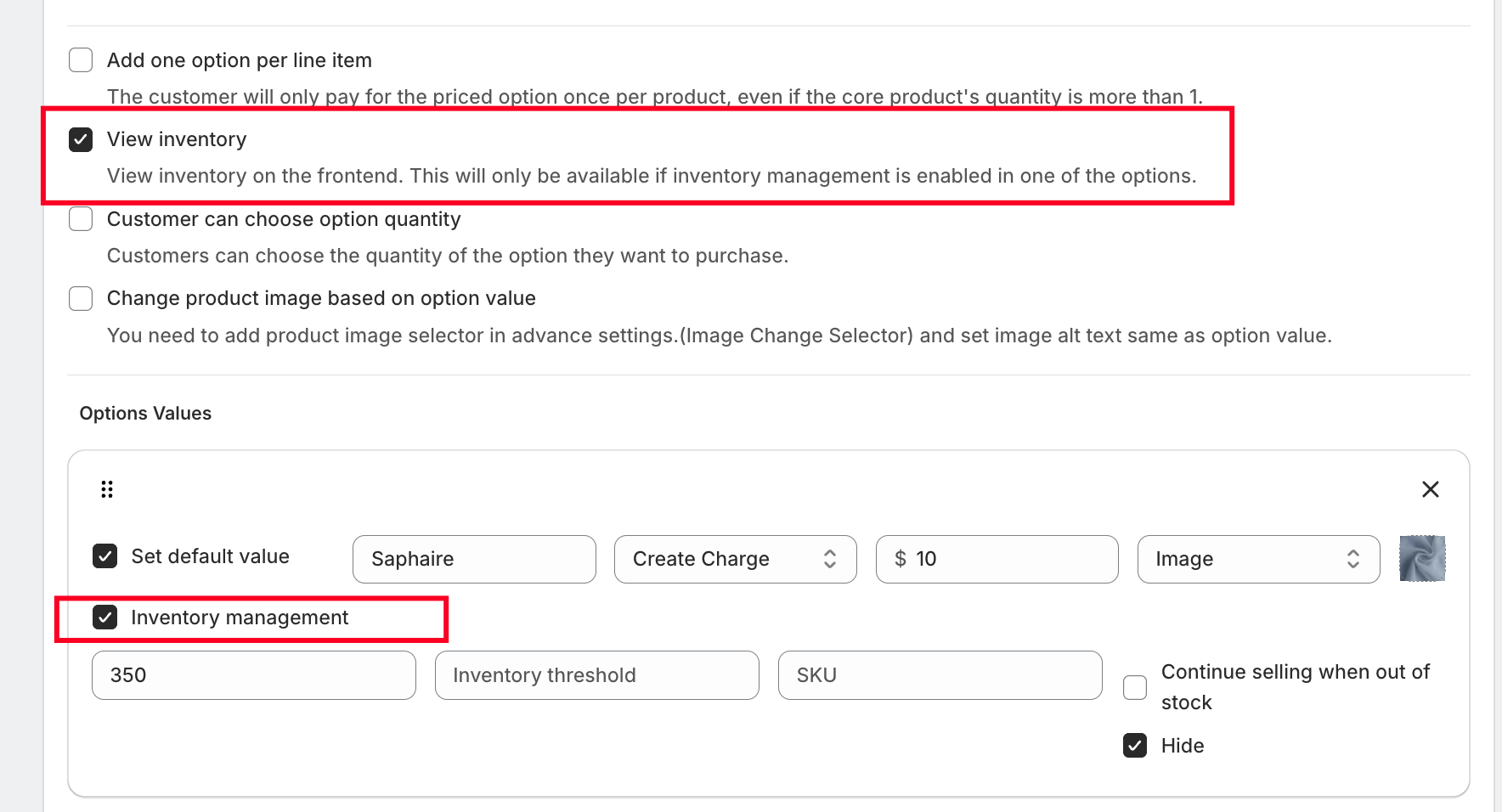
• View Inventory on Frontend
Displays available stock for each swatch value on the product page.
⚠️ Requires inventory management to be enabled.
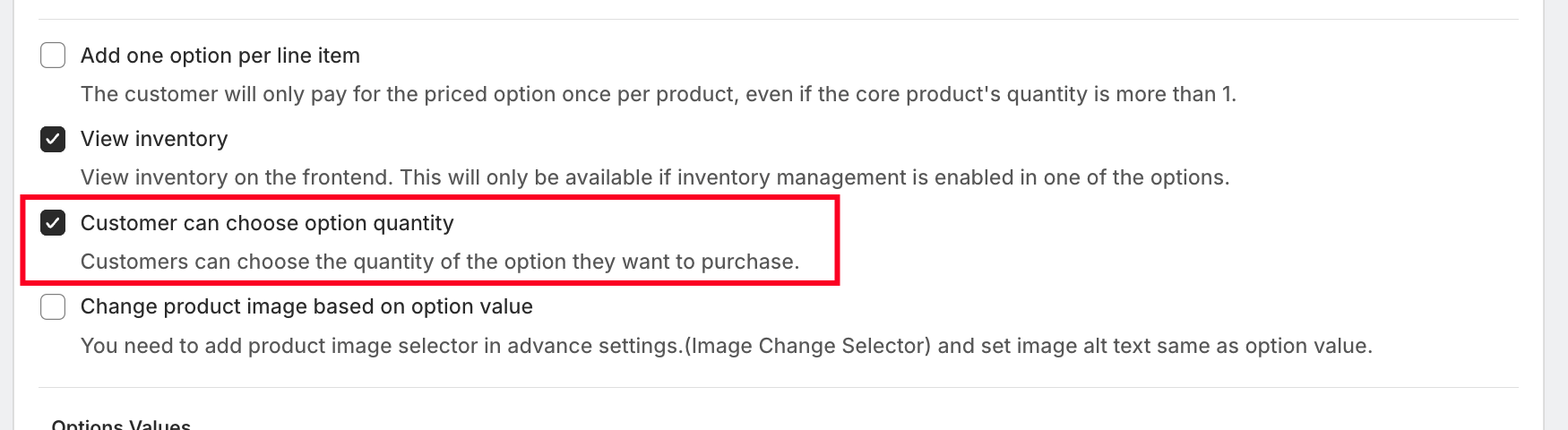
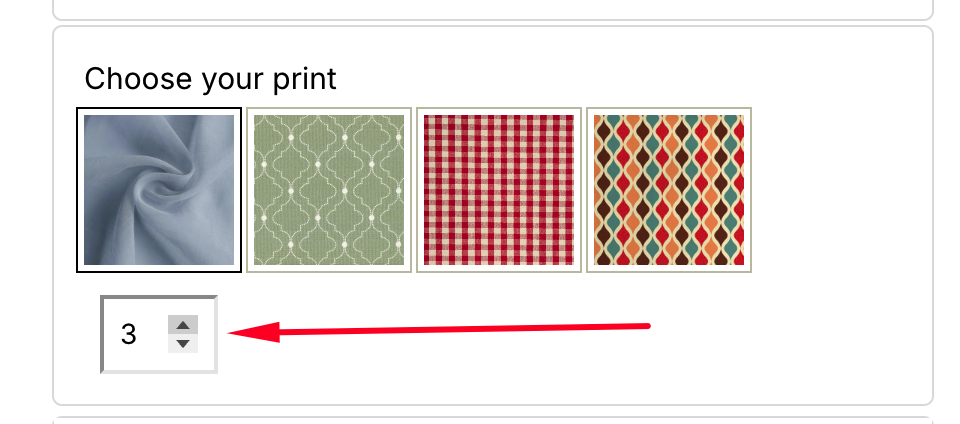
• Customer Can Choose Option Quantity
Allows customers to select multiple quantities of a specific swatch option.
Example:
Buying 2 units of a product and selecting 3 units of a specific design.
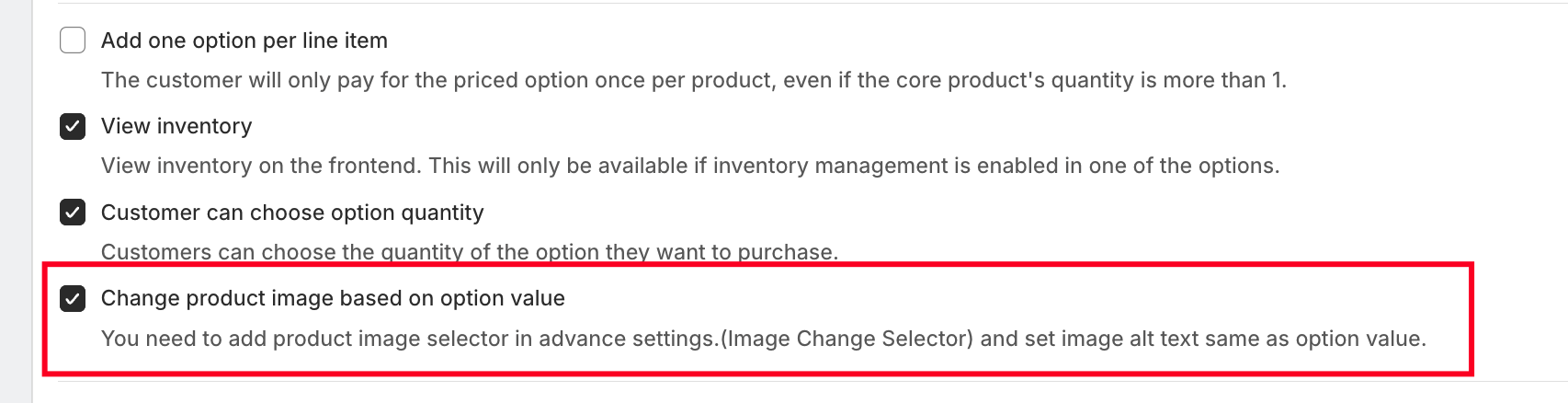
• Change Product Image Based on Option Value
When enabled, selecting a swatch will update the product image.
Important Setup:
The image ALT text must match the option value name
Works with the Image Change Selector setting
? Option Values Configuration
Each swatch value can be customized with:
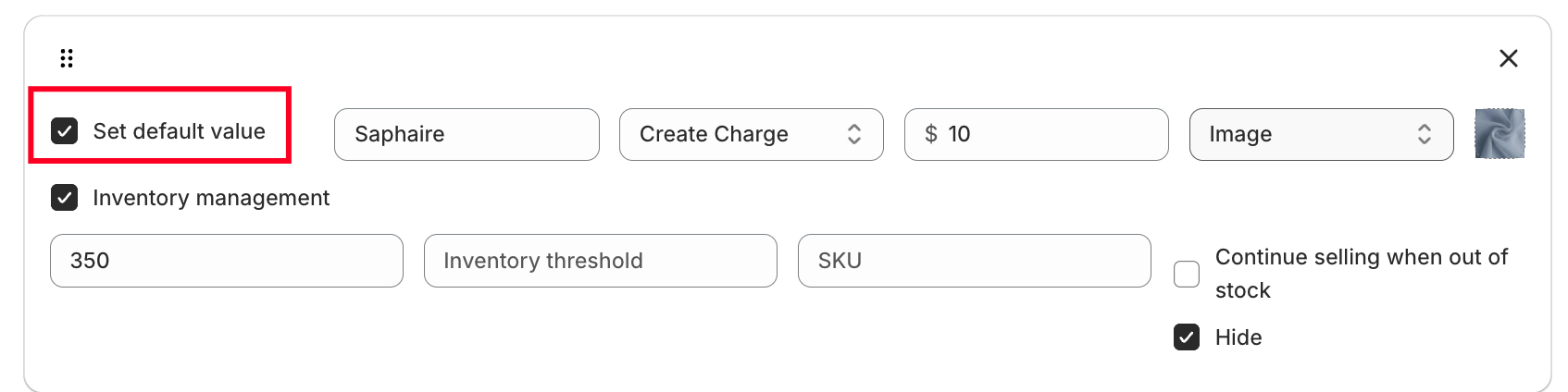
• Option Value Name
Example:
Sapphire
Diamond
• Pricing Options
1. No Price
No additional charge for numeric input.
2. Custom Price
Set a fixed price.
Example: ₹50 extra
3. Use Existing Variant/Product Price
Link any existing Shopify product or variant.
4. Percentage-Based Price
Charge based on product price.
Example:
10% of ₹1000 → ₹100
5. Multiplication-Based Price
Dynamic pricing based on product price.
Example:
Price × 0.5
₹1000 → ₹500
• Display Type
1 Color
2 Color
Image
• Set Default Value
Pre-select a swatch option when the page loads.
? Inventory Management (Advanced)
Swatch options support full inventory tracking:
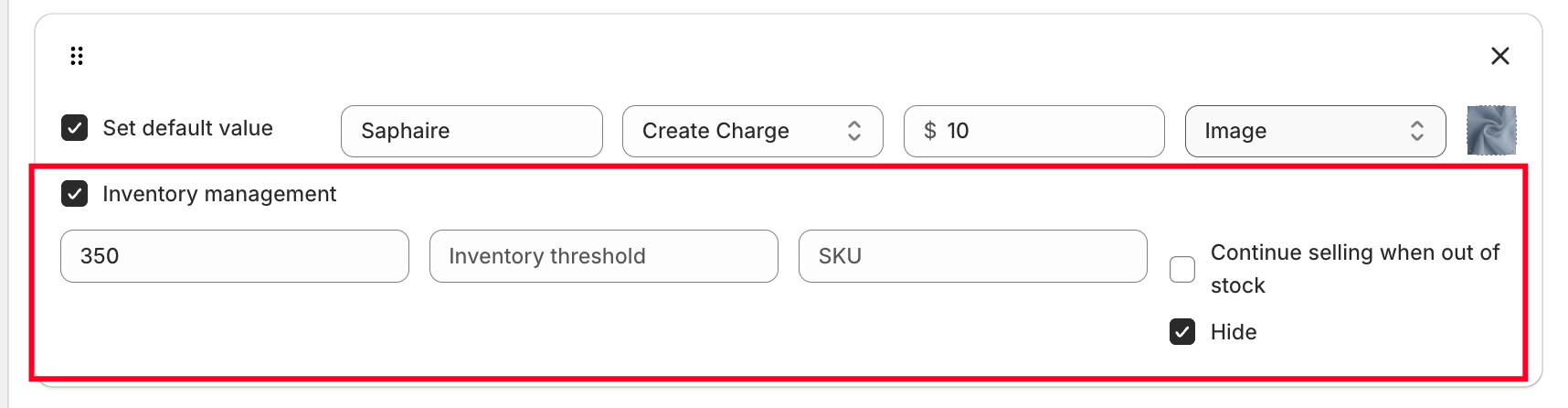
• Enable Inventory Management
Track stock per swatch value.
• Quantity
Set available stock for each option.
• Inventory Threshold
Get alerts when stock is low.
• SKU
Assign unique SKU for each option value.
• Out-of-Stock Behavior
Continue selling when out of stock
Hide option automatically when out of stock
This ensures better stock control and avoids overselling.
? Use Cases
Clothing stores (Color & Size swatches)
Jewelry (Gold, Silver, Diamond variations)
Custom print shops (Design selection)
Furniture (Material or texture selection)
Was this article helpful?
That’s Great!
Thank you for your feedback
Sorry! We couldn't be helpful
Thank you for your feedback
Feedback sent
We appreciate your effort and will try to fix the article