Once all the required options are created, the next step is to organize them using Option Sets. An Option Set allows merchants to group multiple options together and assign them to specific products or collections. This makes it easier to manage and display product customization options on the storefront.
Option Sets help merchants control how options appear, how they behave together, and where they are displayed within the store.
What is an Option Set?
An Option Set is a container that holds multiple options and applies them to selected products.
Instead of assigning options individually to each product, merchants can group related options into one set and apply them to multiple products at once. This simplifies option management and ensures consistency across product pages.
For example, a merchant selling customizable products can create an option set that includes:
Custom text input
Color selection
File upload option
This entire set can then be assigned to specific products where customization is required.
How to Create an Option Set
To create an option set, follow the steps below.
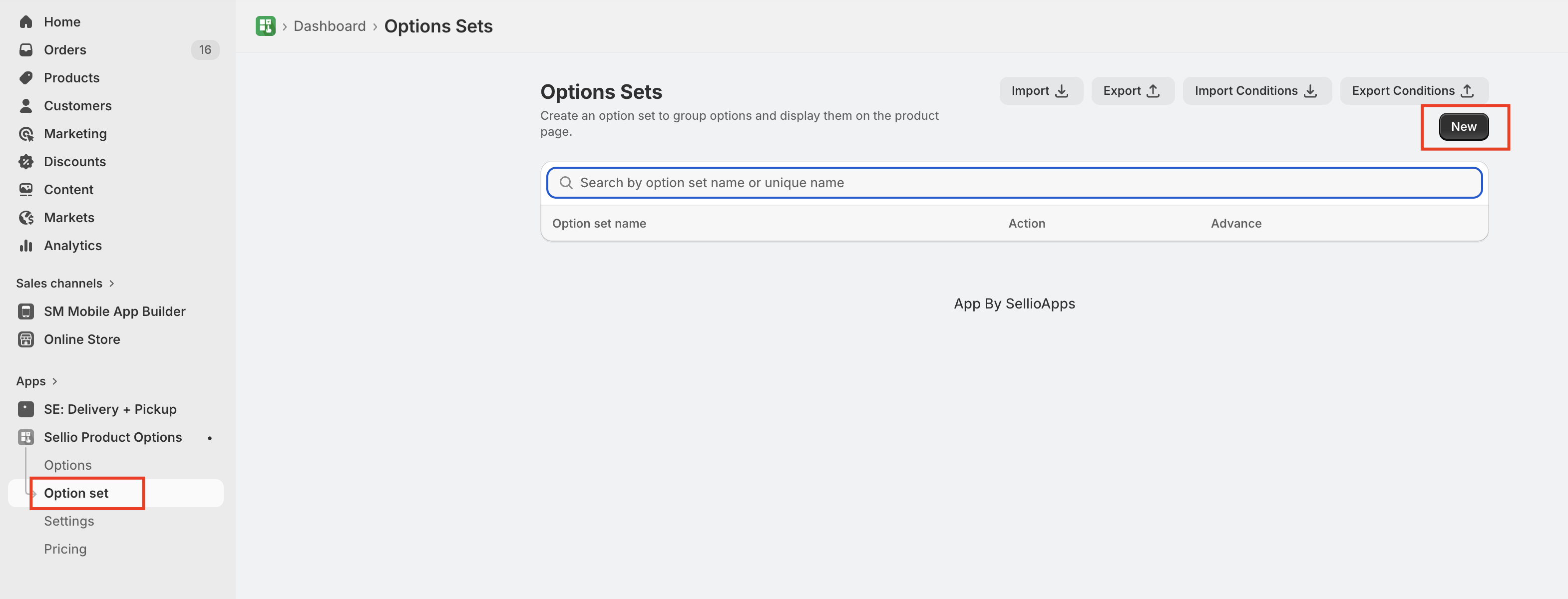
Step 1: Navigate to Option Sets
From the app dashboard, go to the Option Sets section and click the Create Option Set button.
This will open the configuration page where merchants can define the settings for the new option set.
Step 2: Add Option Set Details
Merchants must provide basic information for the option set.
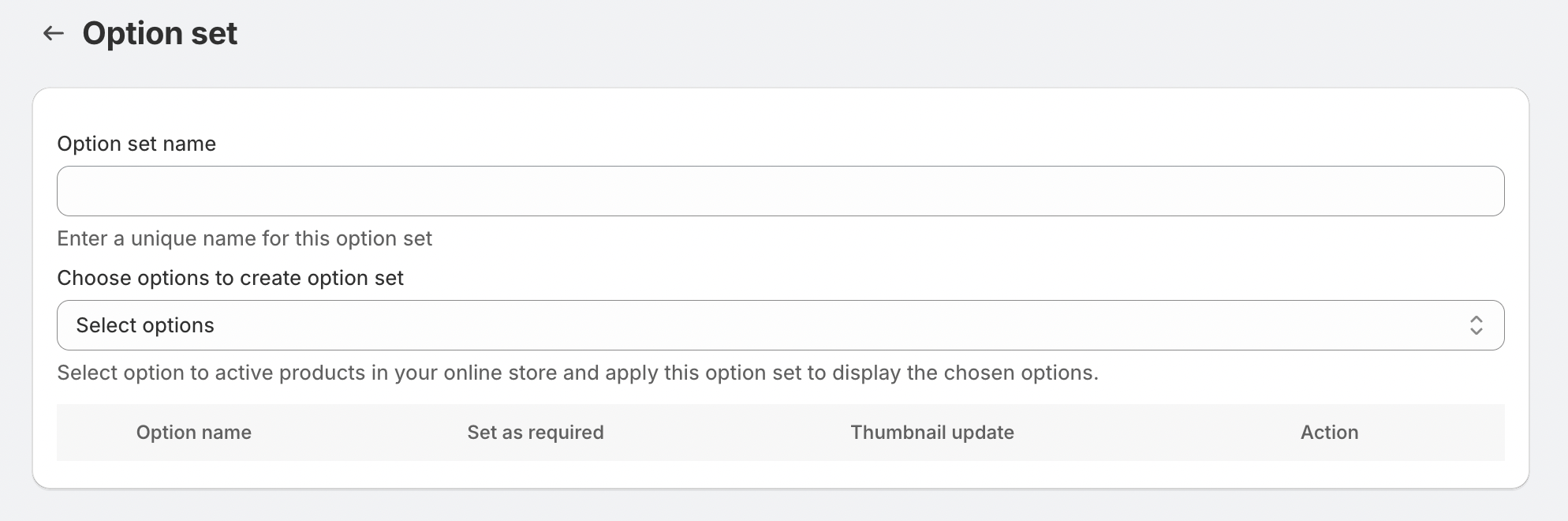
Option Set Name
The option set name is used internally to identify the group of options. This name will help merchants easily locate and manage option sets in the app dashboard.
For example:
Product Customization
Gift Personalization Options
Engraving Options
Step 3: Add Options to the Option Set
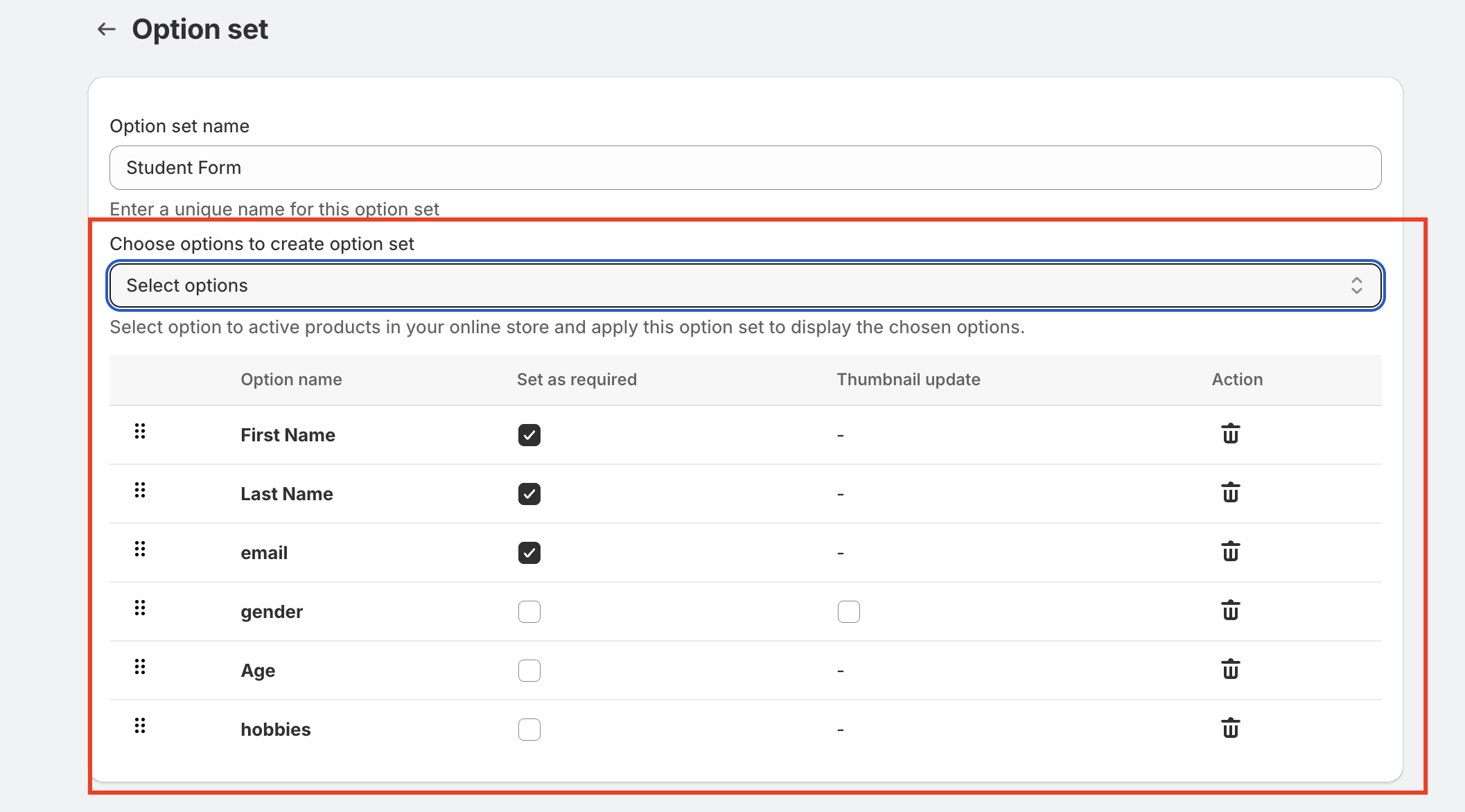
After creating the option set, merchants can begin adding the options that were previously created in the Options section.
Merchants simply select the required options from the available list and add them to the option set.
Once added, the options will appear in the order they will be displayed on the product page.
Merchants can also reorder the options to control how they appear to customers.
For example:
Product Color
Custom Text
Font Selection
File Upload
This ensures a logical and user-friendly experience for customers.
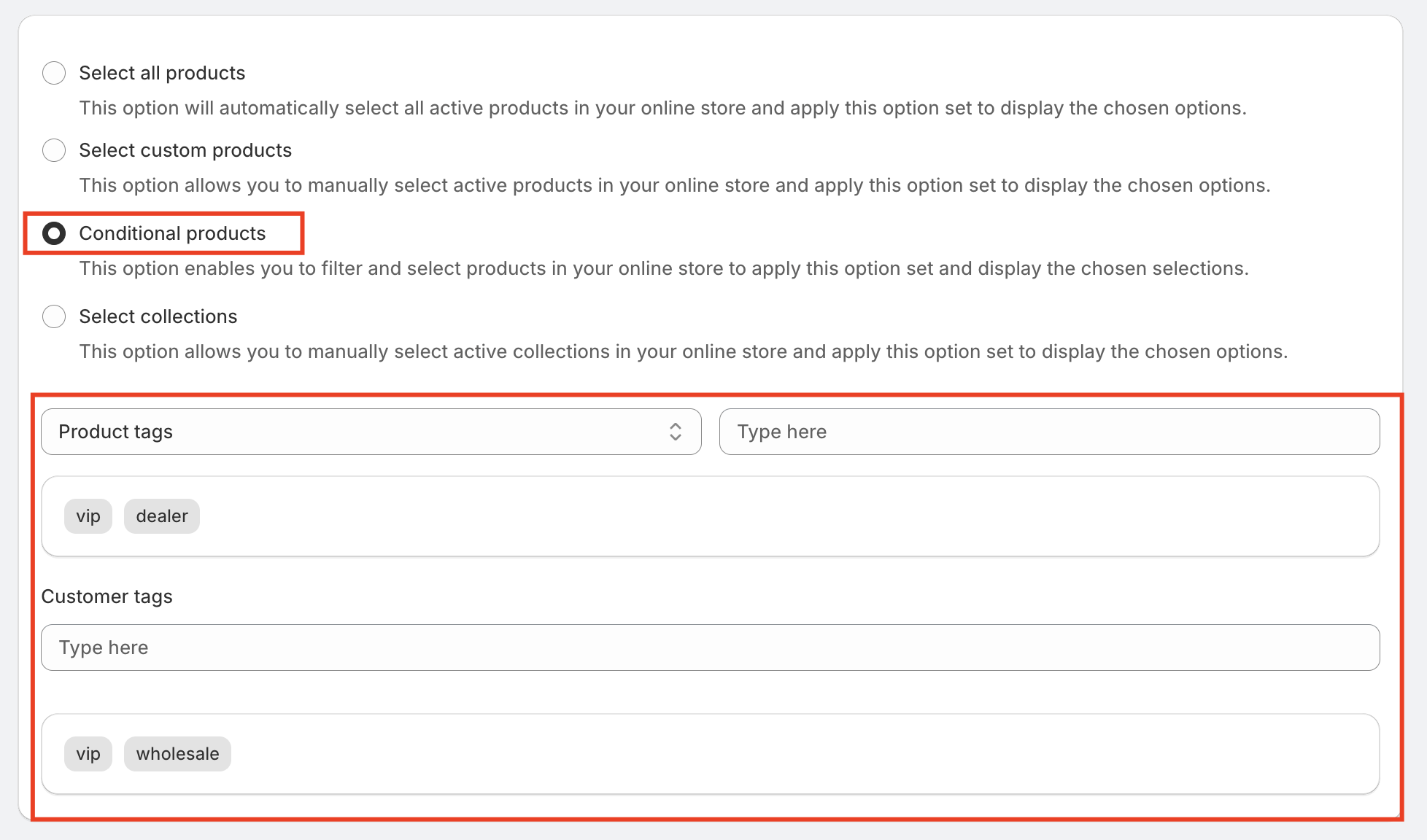
Step 4: Assign Products to the Option Set
After adding the required options, merchants need to assign the option set to products.
The app provides flexible ways to assign option sets:
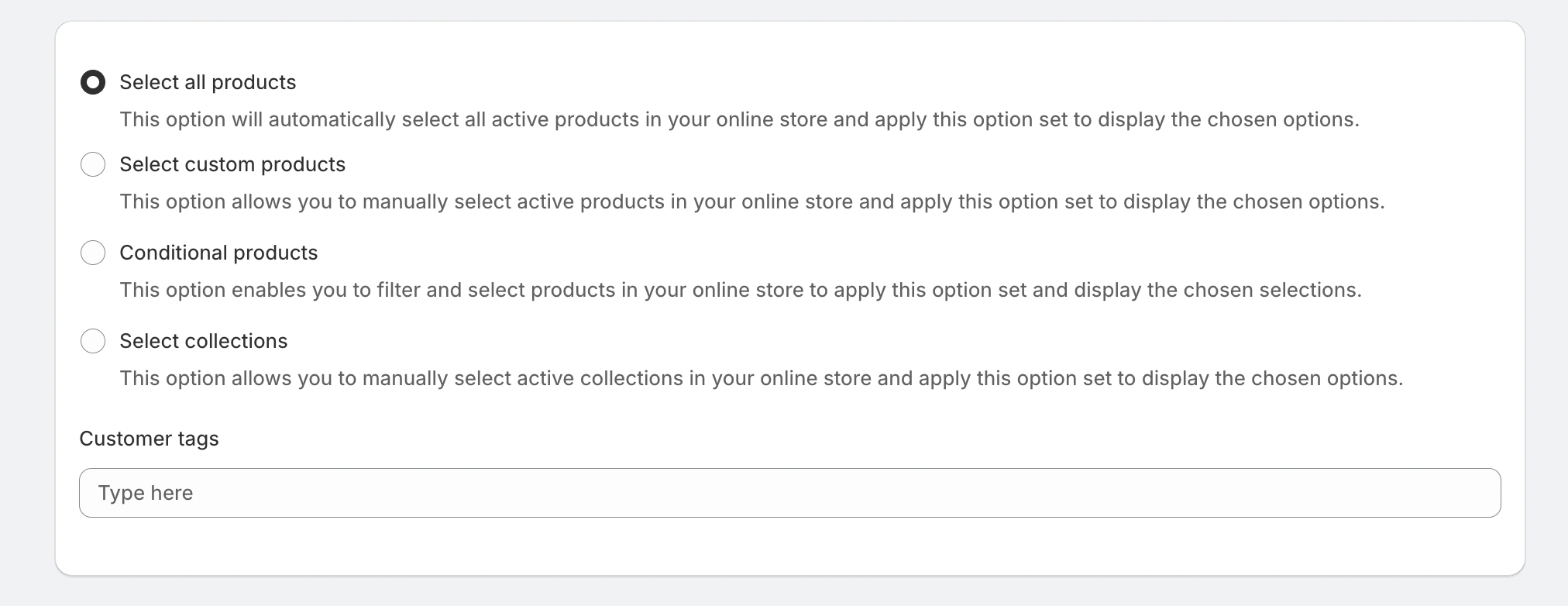
Assign by Products
Merchants can select specific products/all products where the option set should appear.
Assign by Collection
Merchants can apply the option set to an entire collection, making it easier to manage large product catalogs.
Once assigned, the selected options will automatically appear on the product page for those products.
Assign by Conditional Logic
Merchants can assign products based on the specific product vendor / tag / type.

Step 5: Apply Conditional Logic (Optional)
Option sets also support conditional logic, allowing merchants to create dynamic product forms.
With conditional logic, certain options can be shown or hidden based on customer selections.
For example:
If a customer selects "Add Custom Engraving", a text input field will appear.
If a customer selects "Upload Logo", the file upload option will appear.
This keeps the product page clean and only displays relevant options to customers.
Next Steps
After creating option sets, merchants can further enhance product customization by:
Setting up conditional logic rules
Applying advanced option pricing
Customizing option styling on the product page
These features help merchants build powerful and flexible product customization experiences for their Shopify store.
Was this article helpful?
That’s Great!
Thank you for your feedback
Sorry! We couldn't be helpful
Thank you for your feedback
Feedback sent
We appreciate your effort and will try to fix the article