Step 1: Open the Widget Settings
To customize the discount widget:
Open the Sellio Volume Discount app from your Shopify admin.
Navigate to the Settings section in the dashboard.
Inside settings, you will find various Widget Customization options.
These options allow you to modify how the discount tiers and messages appear on your store pages.
Step 2: Customize Widget Styling
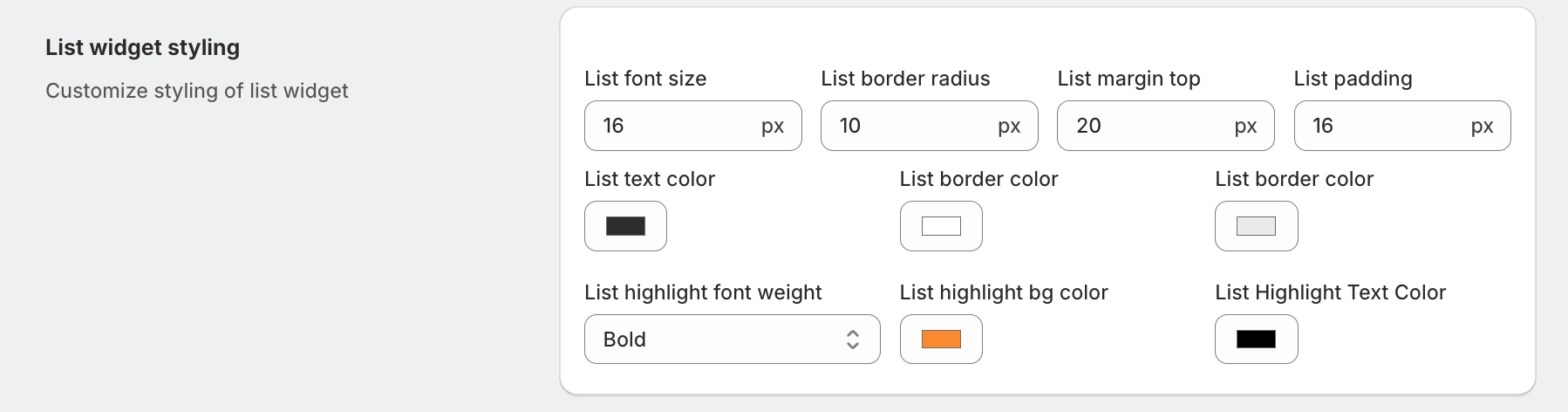
Sellio provides several styling controls to customize the appearance of the discount widget on the product page.
You can customize elements such as:
Colors and background
Text styling
Border styles
These options help ensure the discount widget blends naturally with your store’s design.
Step 3: Customize Widget Text
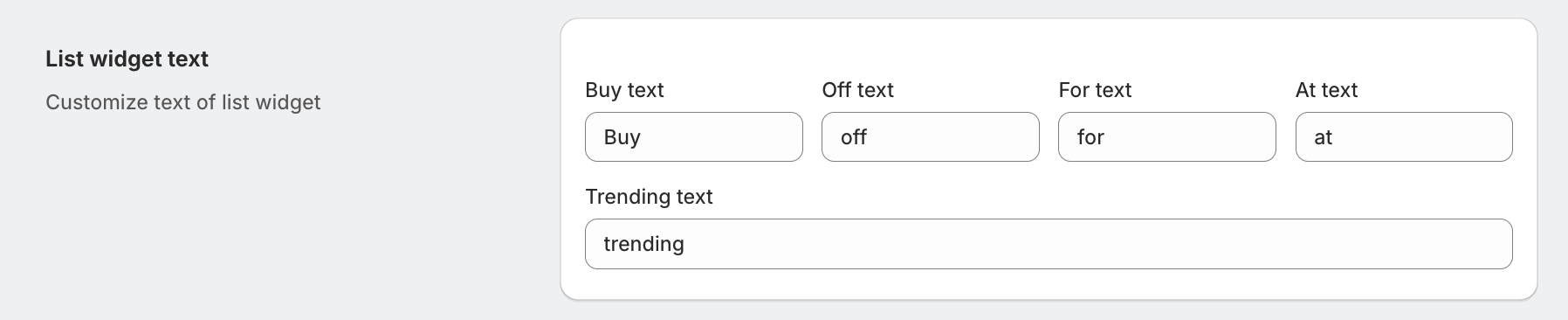
You can also modify the text displayed in the widget.
This allows merchants to create more engaging messaging such as:
“Buy More & Save More”
“Unlock Bigger Discounts"
Step 4: Customize Cart Page Messages
Sellio also provides cart page messaging options.
When a customer adds products to their cart, the app can display a FOMO (Fear of Missing Out) message encouraging them to purchase more items to unlock a discount.
Example messages:
Add 2 more items to get 10% off!
Spend $20 more to unlock a bigger discount!
Step 5: Customize Cart Widget Templates
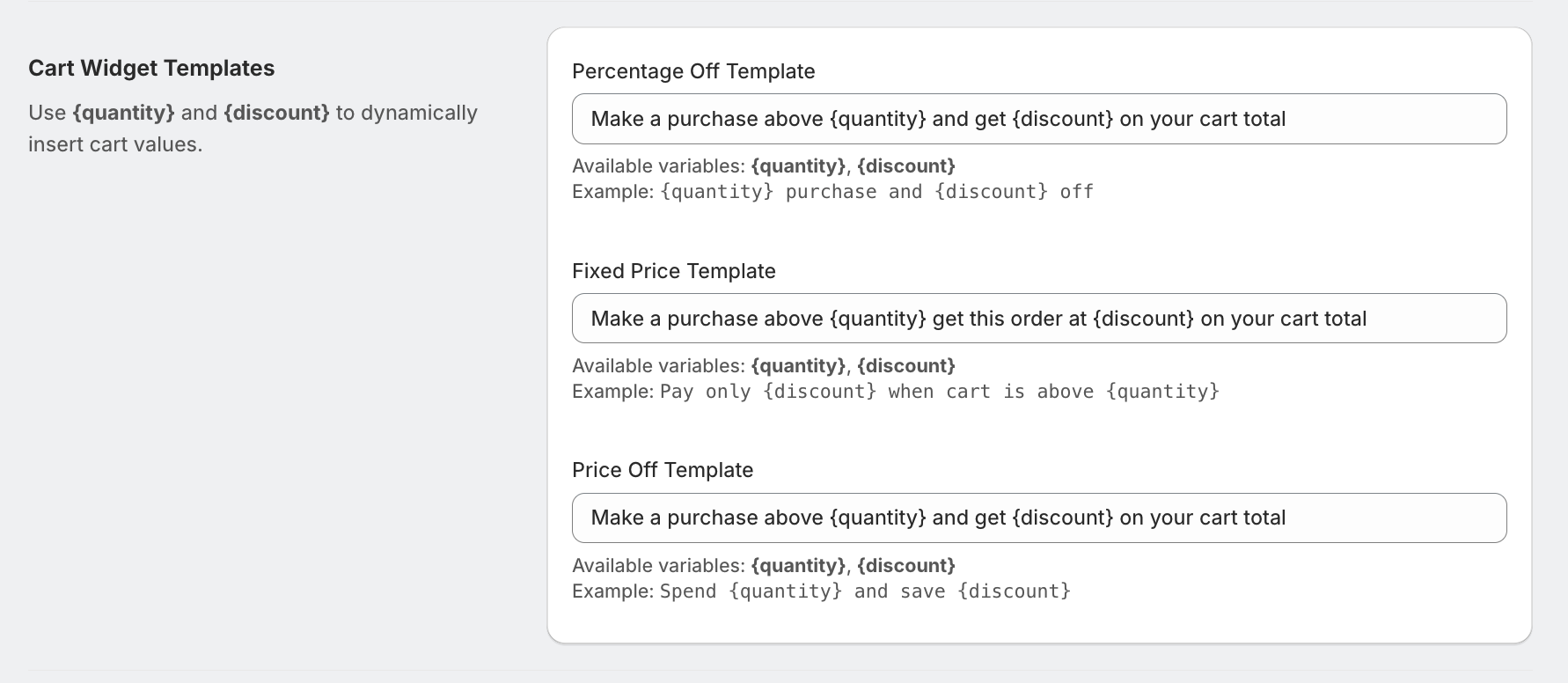
Merchants can also choose from different cart message templates available inside the settings.
These templates control how the discount notification appears on the cart page once the promotion is active.
This ensures customers are clearly informed about available discounts during checkout.
Step 6: Use Advanced Customization (CSS & JavaScript)
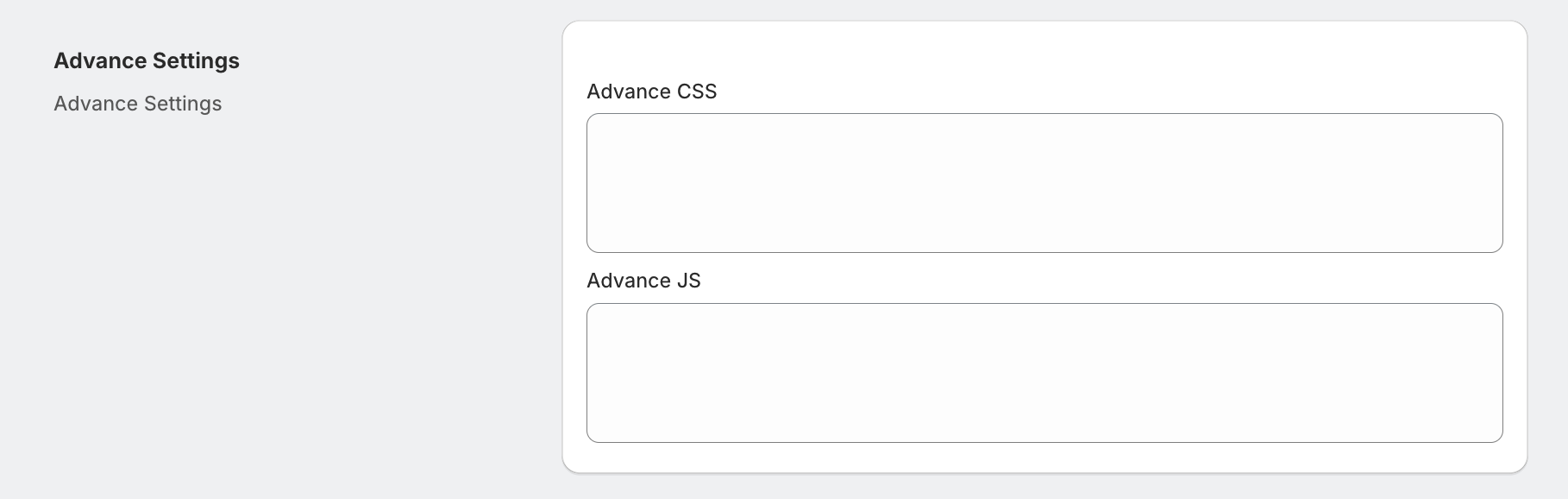
For merchants who want more control, Sellio provides Advanced Customization options.
Inside the Advanced Settings, you can add:
Custom CSS to fully control the widget design
Custom JavaScript to modify widget behavior
Was this article helpful?
That’s Great!
Thank you for your feedback
Sorry! We couldn't be helpful
Thank you for your feedback
Feedback sent
We appreciate your effort and will try to fix the article