How to Create a Discount Offer in Sellio Volume Discount
Creating discount offers in Sellio Volume Discount is simple and requires no coding. Merchants can configure powerful promotions directly from the app dashboard using Shopify’s native discount infrastructure.
Follow the steps below to create a Volume-Based Discount Offer.
Step 1: Open the Discount Dashboard
Start by opening the Sellio Volume Discount app from your Shopify admin.
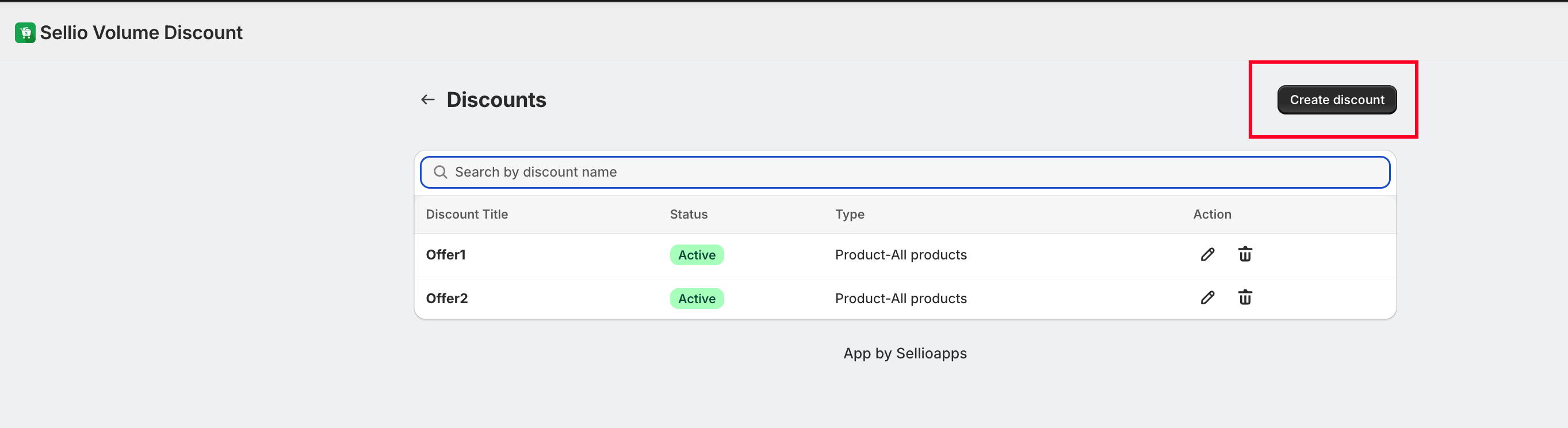
Inside the dashboard, navigate to the Discounts section and click Create Discount.
You will now be asked to choose the type of discount offer you want to create.
Step 2: Choose the Offer Type
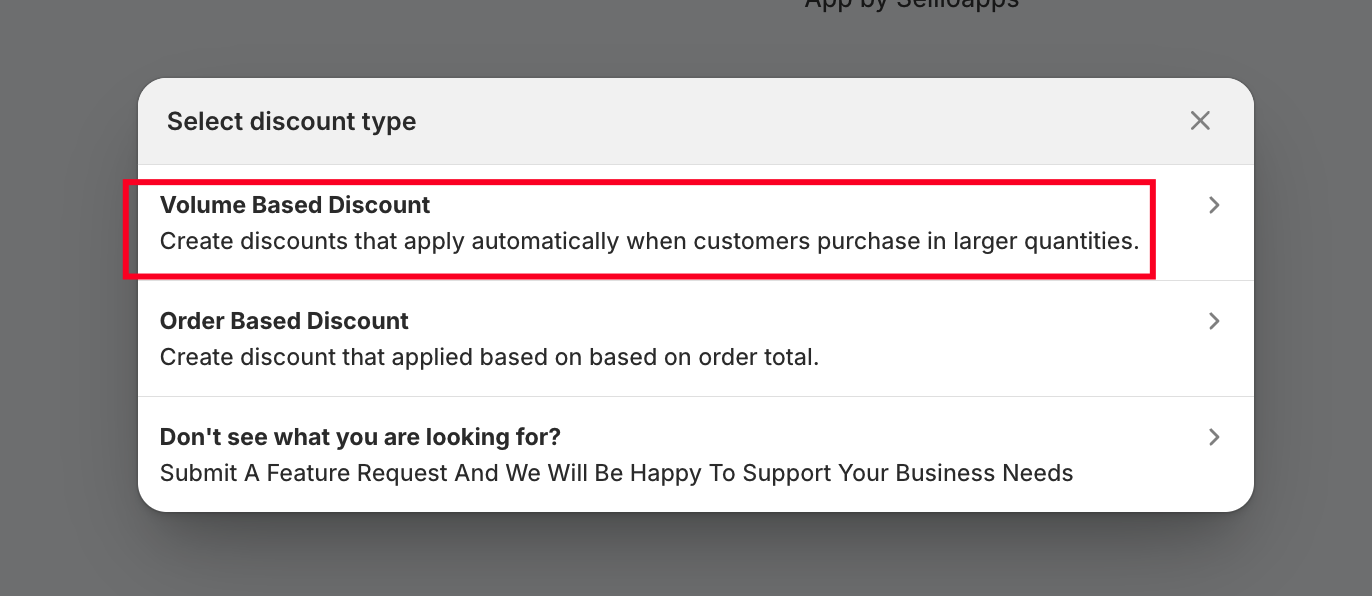
Sellio Volume Discount provides two primary discount types:
Volume Based Discount
Discounts applied when customers purchase a specific quantity of items.
Order / Cart Total Discount
Discounts applied when the cart reaches a certain total value.
For this guide, select Volume Based Discount.
Step 3: Enter Basic Offer Information
Next, provide the basic details for your discount offer.
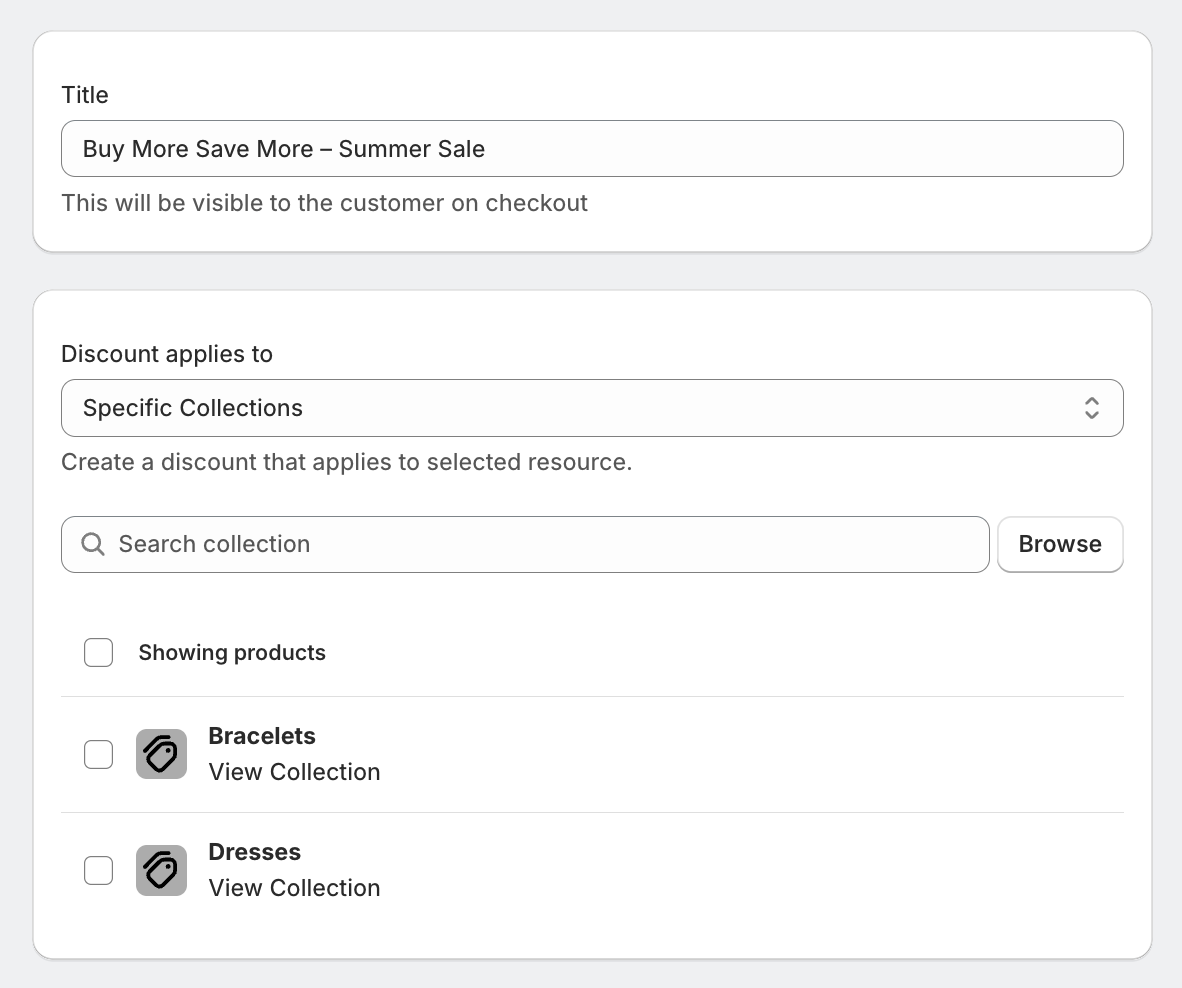
Offer Title
Add a clear name for your offer so you can easily identify it later.
Example:
Buy More Save More – Summer Sale
Step 4: Choose Where the Discount Applies
You can decide which products the discount will apply to.
Sellio Volume Discount allows you to target:
All Products
Specific Products
Specific Collections
Specific Variants
This allows merchants to create highly targeted promotional campaigns.
Example:
Apply the discount only to a Summer Collection or a specific product variant.
Step 5: Select the Discount Type
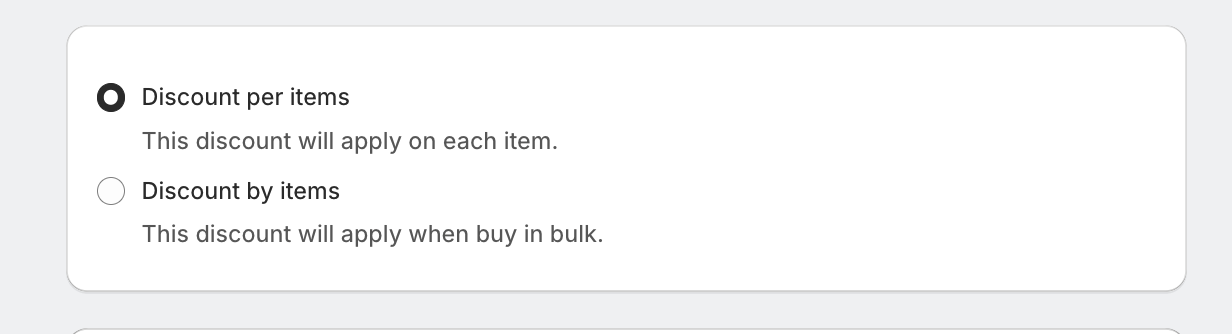
Discounts per items (This discount will apply on each item)
Example: Buy 10+ items & get 5% OFFDiscount by items (This discount will apply when buy in bulk)
Example: Buy fixed 10 items & get 5% OFF, Buy fixed 15 items & get 10% OFF
Step 6: Configure Discount Tiers
Now define the volume tiers for your promotion.
Discount tiers determine how much discount customers receive based on the quantity they purchase.
Example tier setup:
| Quantity | Discount |
|---|---|
| Buy 10 items | Get 5% Off |
| Buy 15 items | Get 10% Off |
| Buy 20 items | Get 15% Off |
You can add multiple tiers depending on your promotional strategy.
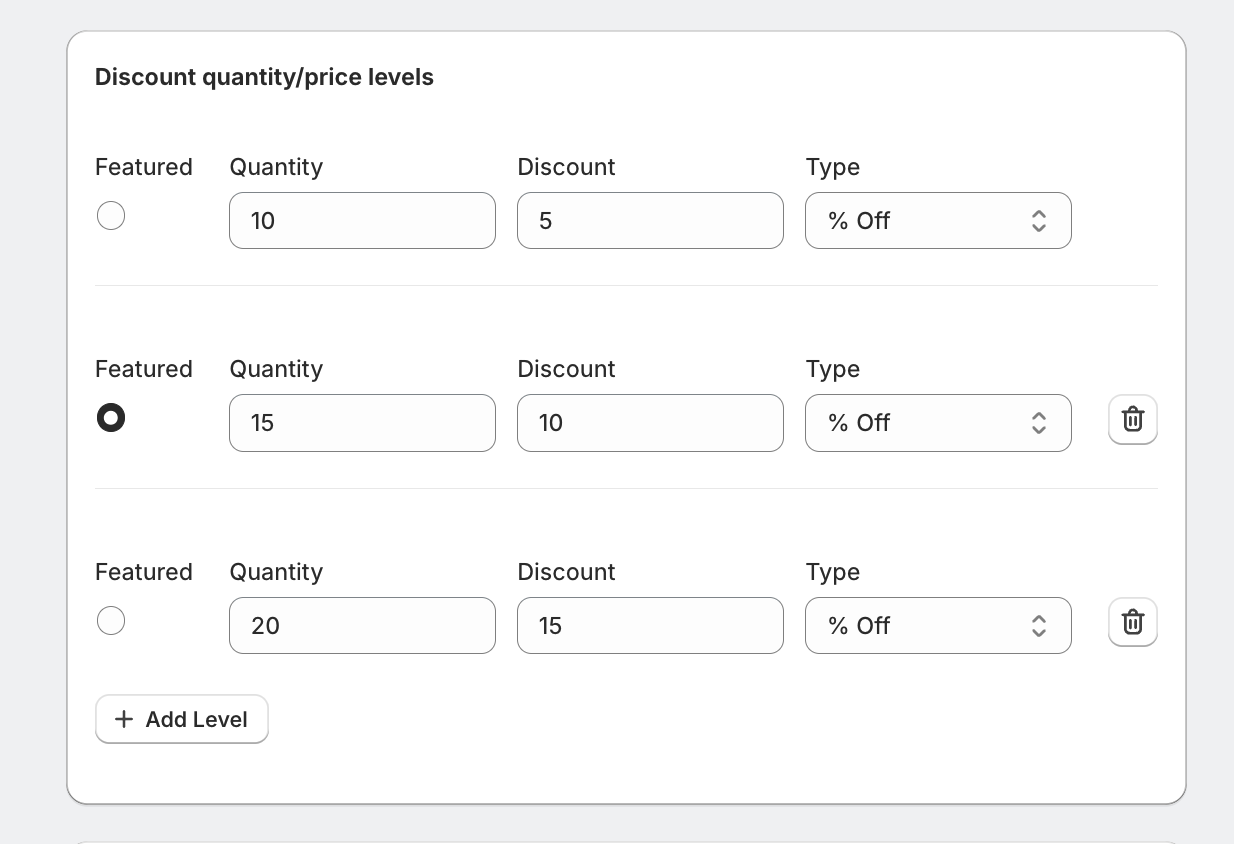
Sellio Volume Discount supports:
Percentage Discounts (e.g., 10% off)
Fixed Discount Amounts (e.g., $5 off)
Fixed Price Discounts (e.g., Buy 3 items for $20)
For most volume promotions, merchants typically choose percentage-based discounts.
Step 7: Set Discount Eligibility
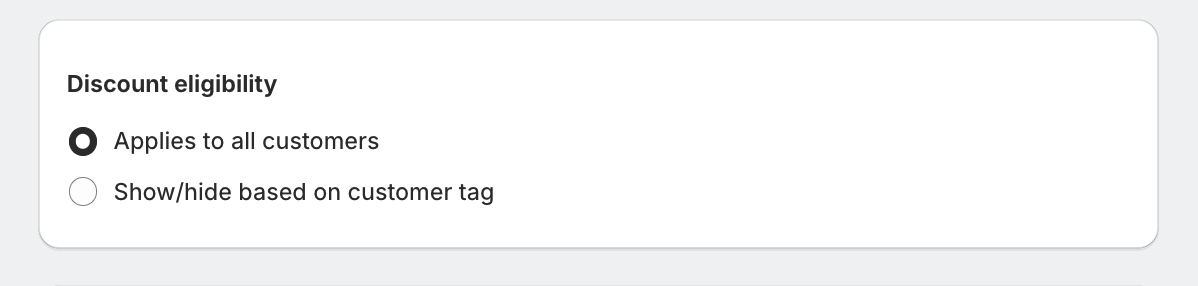
Next, decide which customers can access this discount.
Sellio Volume Discount allows two options:
All Customers
The discount is available to everyone shopping in your store.
Specific Customers (Customer Tags)
You can restrict the offer to customers with specific Shopify tags.
Example use cases:
VIP customers
Wholesale buyers
Loyalty program members
Step 8: Schedule the Offer
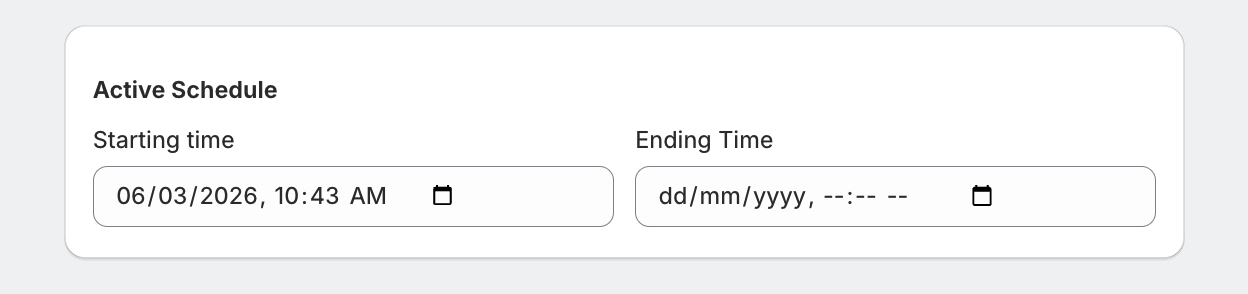
Sellio Volume Discount also allows merchants to schedule discounts for a specific time period.
You can set:
Start date
Start time
End date
End time
Once the end date is reached, the discount will automatically deactivate.
This is perfect for:
Flash sales
Holiday promotions
Weekend deals
Seasonal campaigns
Step 9: Save and Activate the Offer
After completing all the steps, simply save the offer.
Your discount will now be active according to the settings and schedule you configured.
Because Sellio Volume Discount runs on Shopify Functions, the discount will apply directly within the Shopify checkout, ensuring a seamless experience for customers.
Sellio Volume Discount makes it easy to create powerful promotional offers without any technical setup.
With flexible targeting, tiered discounts, and scheduling options, merchants can launch high-converting campaigns in just a few minutes.
Was this article helpful?
That’s Great!
Thank you for your feedback
Sorry! We couldn't be helpful
Thank you for your feedback
Feedback sent
We appreciate your effort and will try to fix the article